
How to capture content ideas before they disappear and turn the best ones into projects
Capture content ideas, develop them with your team, and turn the strongest concepts into production projects.
Updated
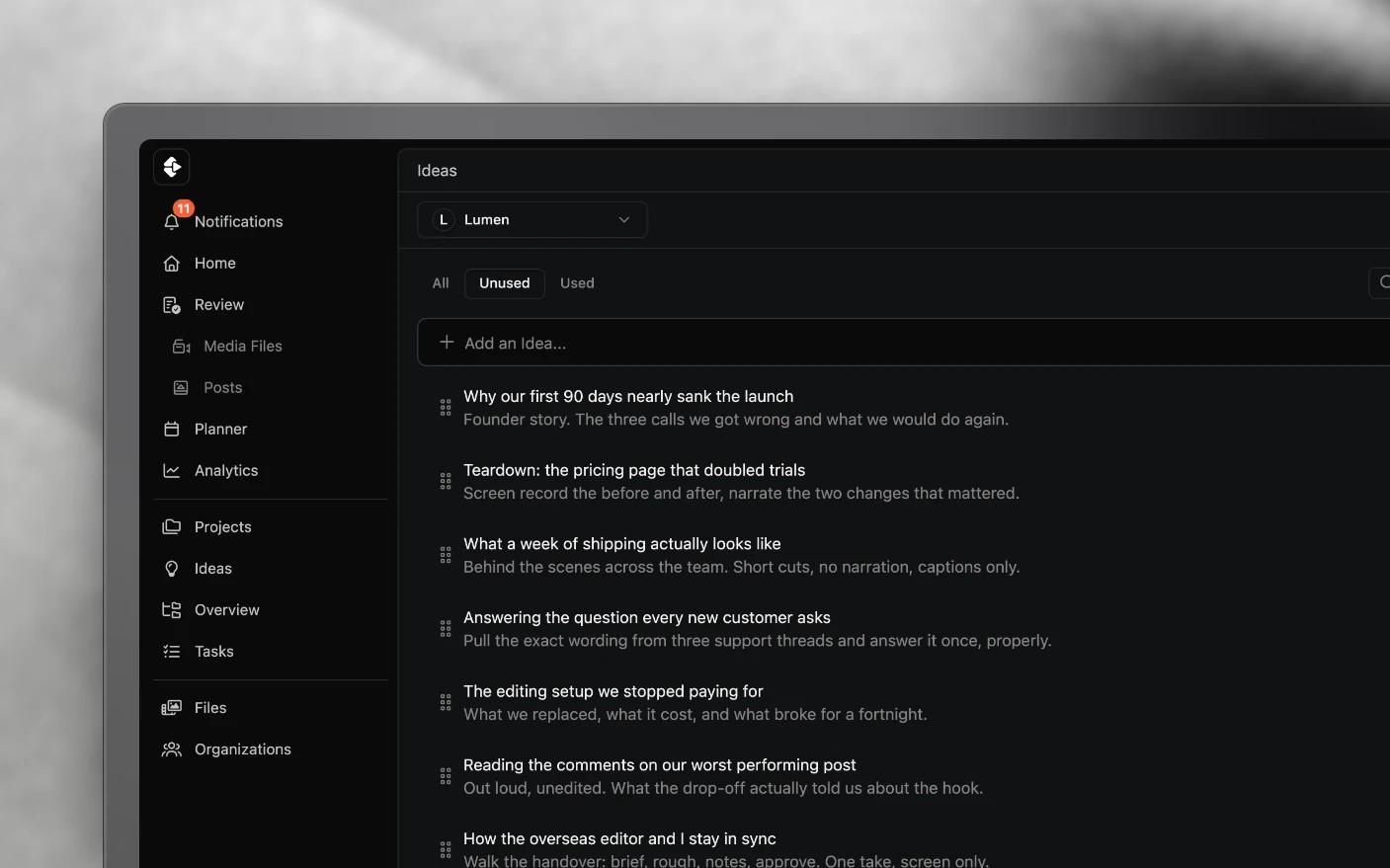
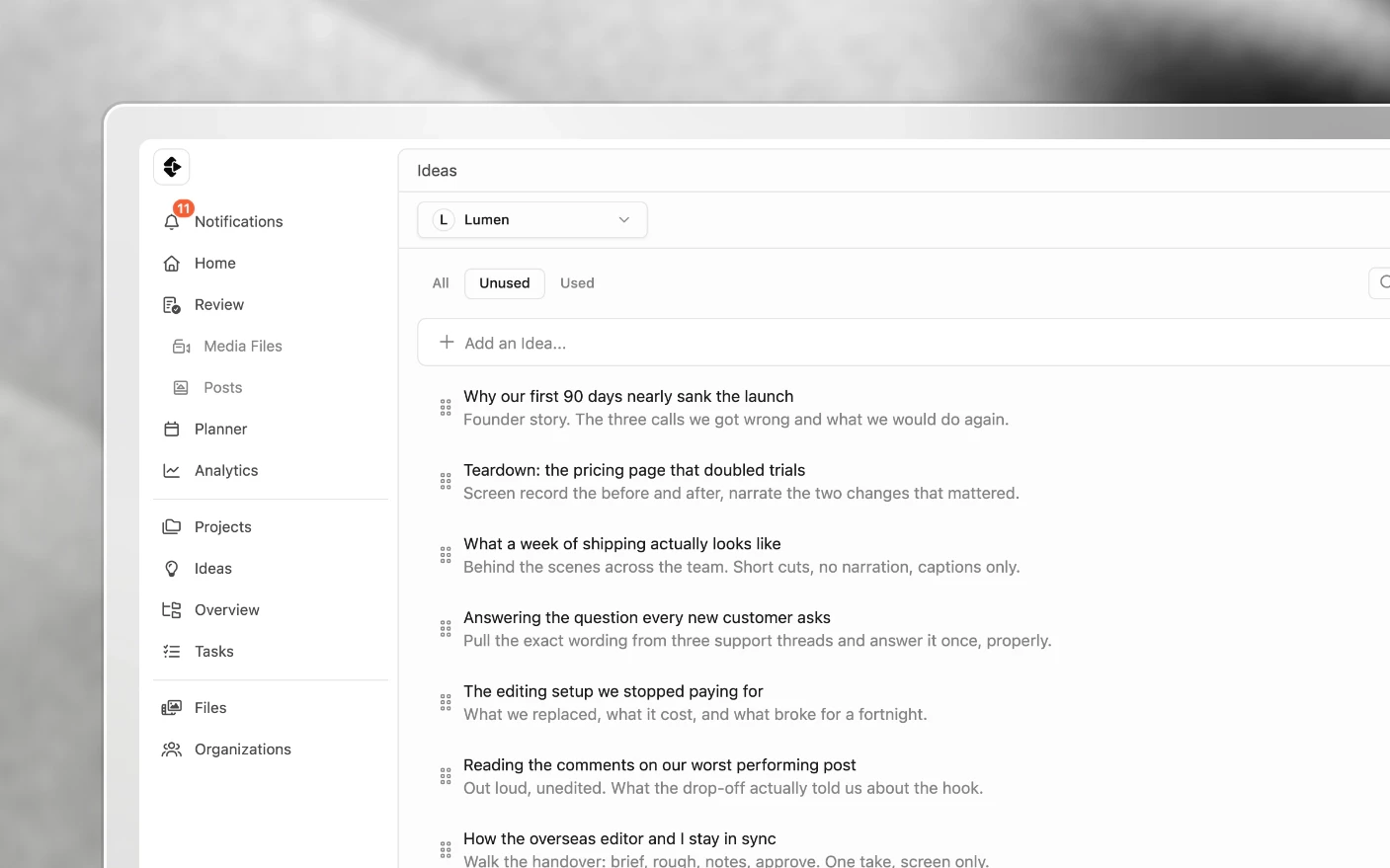
Give good content ideas somewhere useful to go before they get lost in chat
Ideas is the space before production. Rough thoughts, half-formed angles, links worth coming back to, notes from a conversation you had in the car: things that are not projects yet and should not be treated as if they were.
Nothing on the ideas screen touches your production workflow until you decide it should. That is what makes it safe to put bad ideas there, which is the point.
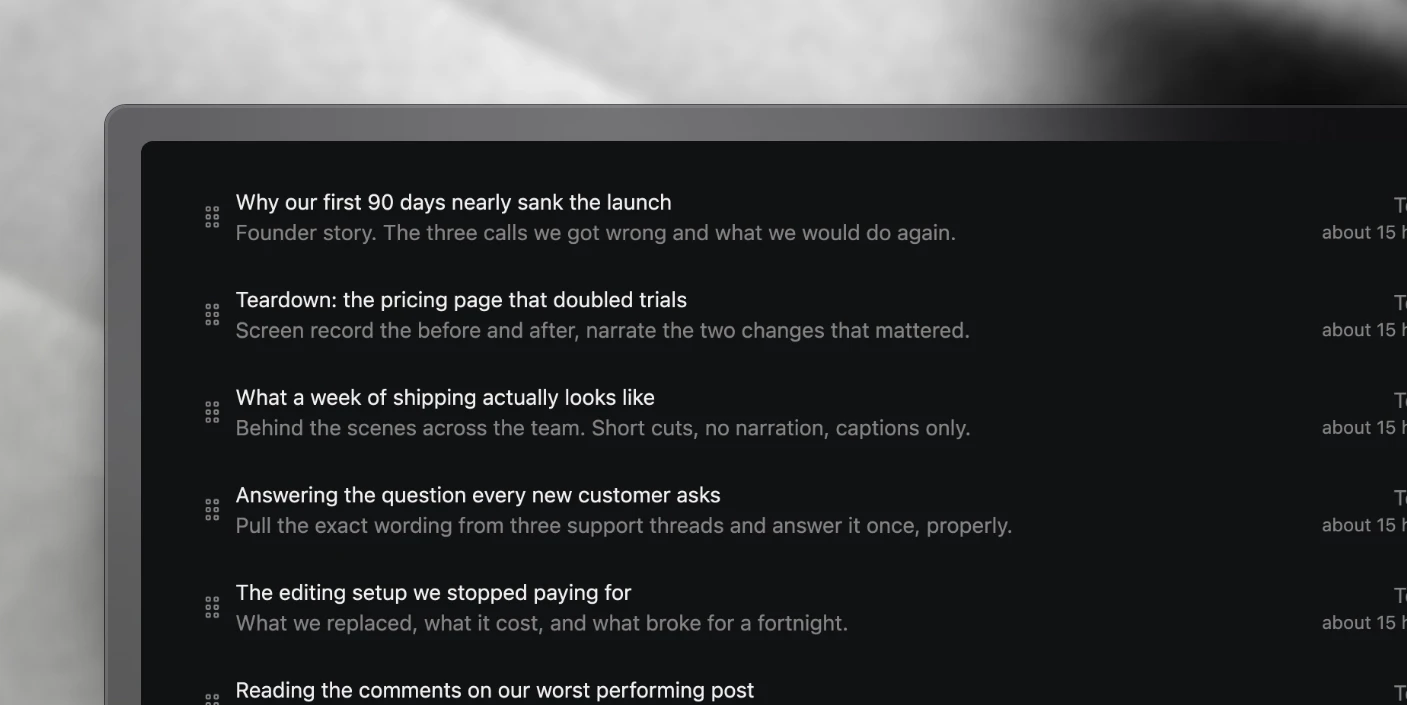
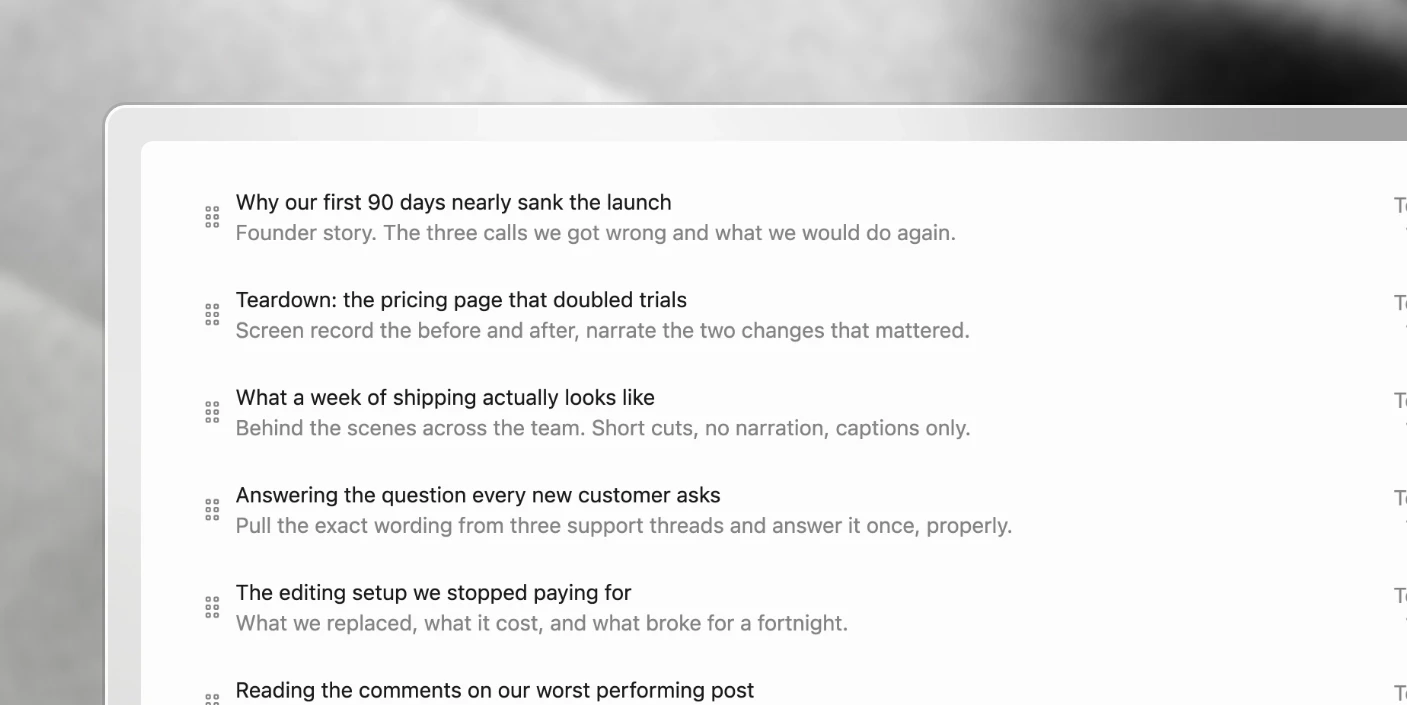
Why keep ideas in Clipflow?
Common problems solved:
- Ideas living in notes apps, voice memos, and saved posts nobody revisits
- A content calendar that empties out because the pipeline was never filled
- Good angles lost because there was nowhere to put them at the time
- Creating a full project just to record a thought
What you get:
- One place the whole team adds to
- Room to develop an idea before committing to it
- A drag to turn an idea into a real project
- A backlog to draw from when the calendar looks thin
Step 1: Capture
Add an idea with as little as a working title. Speed matters more than completeness here: an idea captured badly beats an idea lost.
Step 2: Develop it
Open an idea and you can:
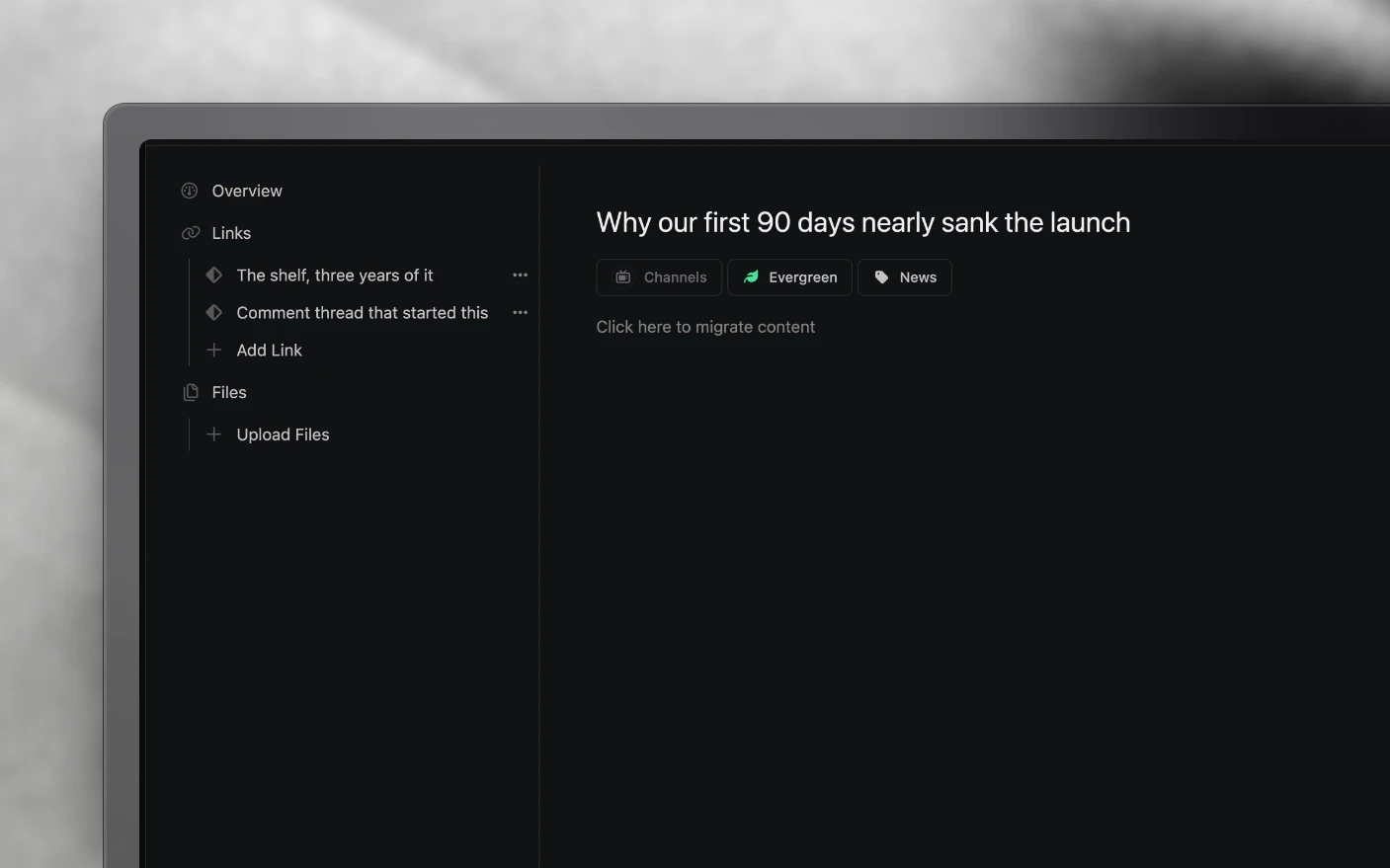
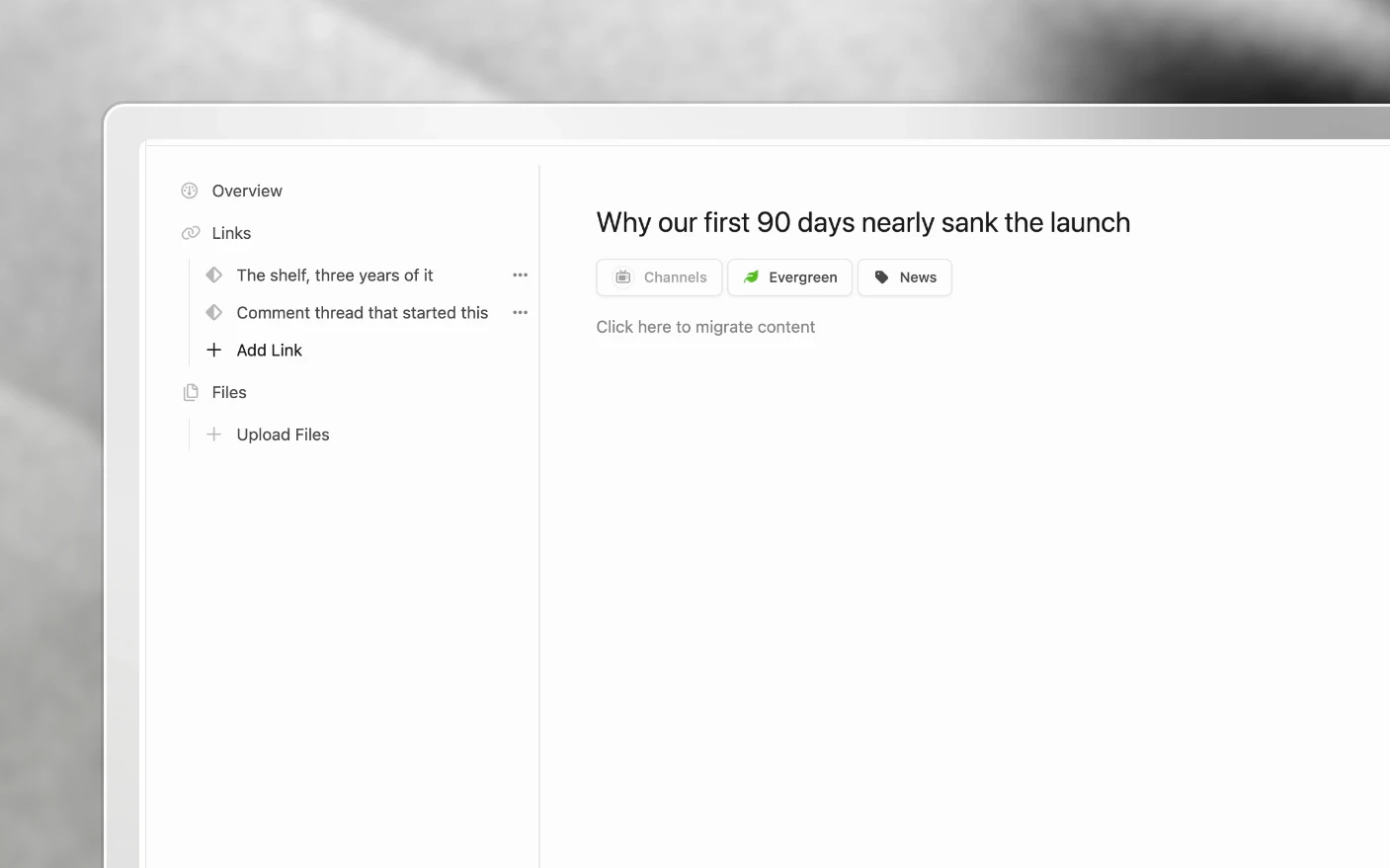
- Write notes and flesh out the angle
- Attach files
- Add reference links
- Comment with your team
Each idea has an outline page, so there is somewhere real to think. See Project Pages.
Your team can comment, add references, and sharpen the angle before anyone commits production time to it. That is cheaper than discovering the problem during the edit.
Step 3: Convert it into a project
Two ways:
Drag it. Pull the idea from the ideas column into any production column and Clipflow converts it into a project.
Convert from inside. Open the idea and use the convert option in the top right.
Once converted, the full project workspace opens up: tasks, pages, packaging, media, thumbnails, channels, share links, and everything else. See Working with Projects.
Converting from a template is worth considering if the idea fits a format you produce regularly. See Using Project Templates.
Step 4: Assign channels
Ideas can carry channels, so an idea earmarked for a particular brand or platform arrives in the project already pointed the right way. Useful for agencies running several clients from one pipeline.
Tips and best practices
- Capture without judging. The filter belongs at conversion, not at capture. An ideas list that only holds good ideas is a list nobody adds to.
- Review the backlog weekly. Ideas rot. An angle that was sharp six weeks ago may have been overtaken.
- Write the hook when you capture it, if you have one. The phrasing that made the idea feel good is the part you forget.
- Convert late. An idea costs nothing sitting there. A project implies someone is producing it.
- Delete freely. A backlog of four hundred ideas is a graveyard, not a pipeline.
- Bring the whole team in. Editors and videographers see things producers miss, and the ideas screen is where that goes.
Frequently asked questions
Does an idea show up on my project board?
No. Ideas are separate until converted.
What happens to notes and files when I convert?
They come with it. The idea’s outline becomes part of the project.
Can I convert an idea back?
No. Convert when you intend to produce it.
Can clients see ideas?
Not unless you share them. Ideas are internal by default.
Can I convert an idea using a template?
Starting a project from a template gives you the full task structure. See Using Project Templates.
Is there a limit on ideas?
No. Prune for your own sake rather than a limit.
Related articles
- Working with Projects: what happens after conversion
- Using Project Templates: start production with structure
- Project Pages: where idea outlines live
Was this page helpful?
Related articles
Production Dashboard
See content projects across every organization in one production dashboard, sorted by deadline and ready for action.
Project Pages
Write content briefs, scripts, hooks, and production notes inside the project where the team can review and approve them.
Project Task Lists
Manage content production tasks, deadlines, assignees, and workload across projects from one task list.
Need more help with this?
Contact support