
How to start a content project with a proven workflow instead of a blank workspace
Use content project templates to start consistent production workflows with the right briefs, tasks, channels, and deadlines.
Updated
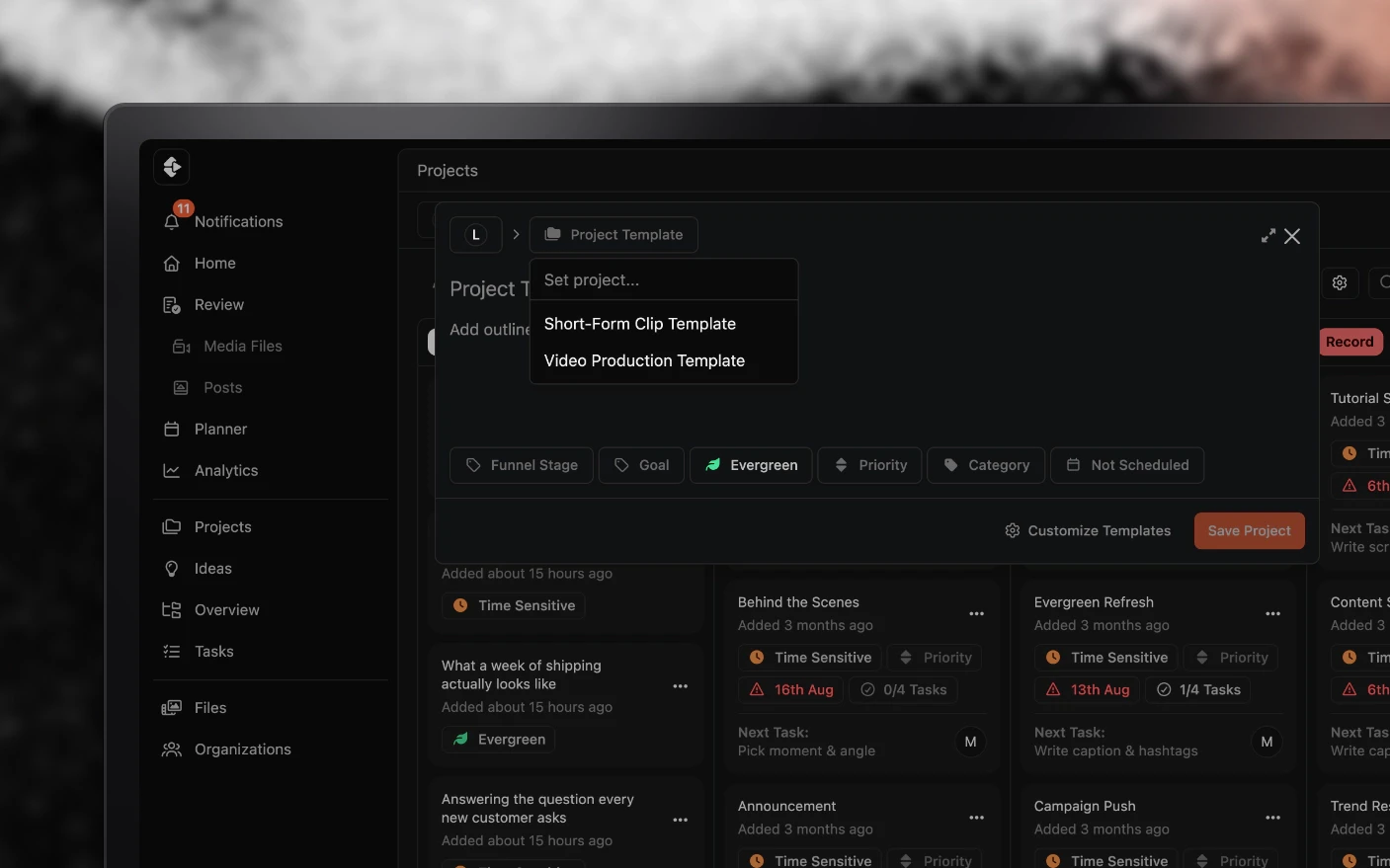
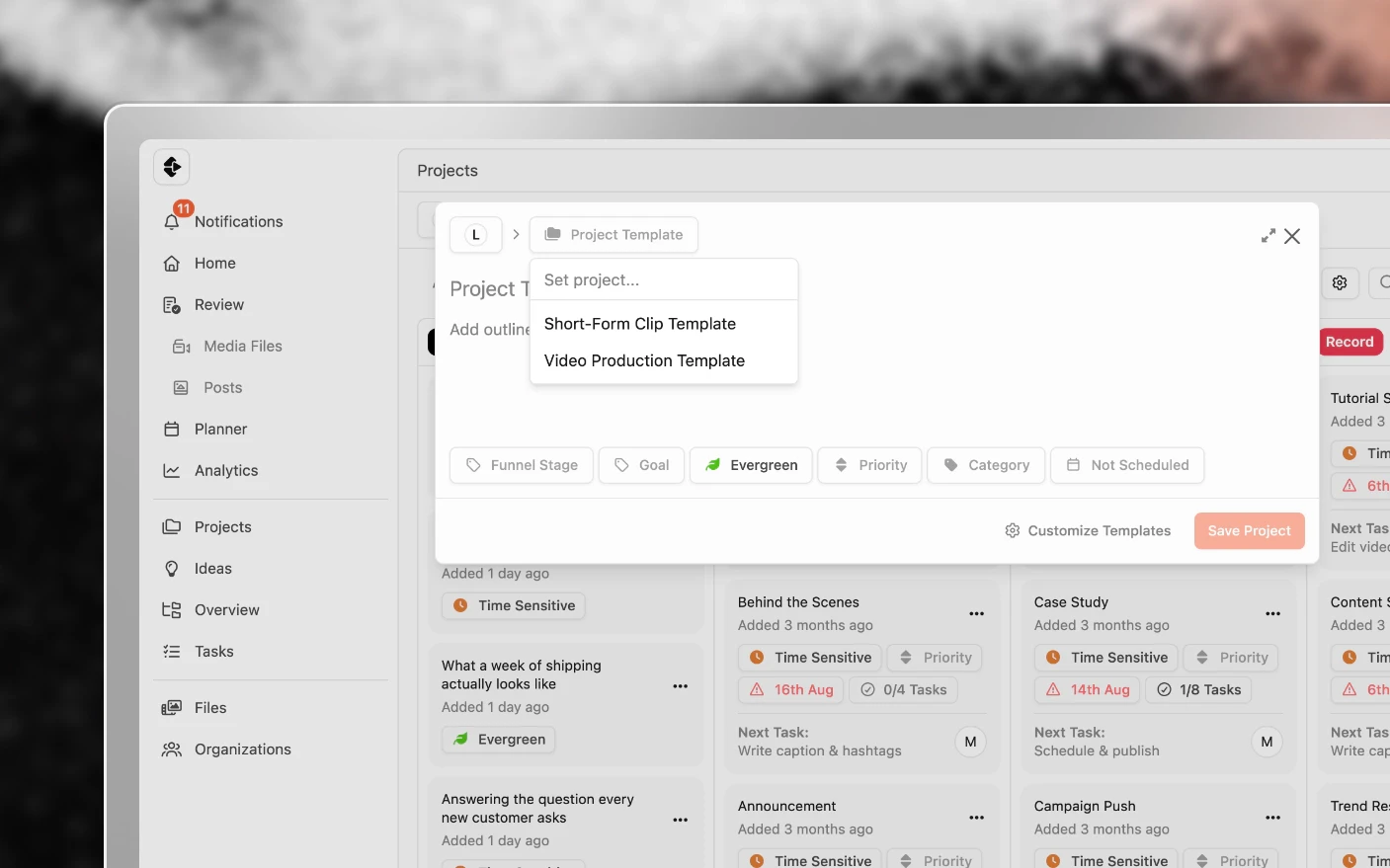
You can save any project as a template and create new projects in seconds.
Give every new project the structure your team already knows how to run
A project templates let you save a complete project structure and reuse it for future projects. Instead of manually setting up the same task lists, pages, and settings every time, you create from a template and everything is ready to go.
Task due dates use offset logic, so deadlines automatically calculate based on each project’s schedule.
Why Use Project Templates?
If you create the same type of project repeatedly, you’re probably spending 20+ minutes on manual setup each time. Weekly podcasts, monthly newsletters, standard client deliverables. Same structure, same tasks, same settings. Over and over.
Common Problems Solved:
- Manual setup for recurring project types
- Forgetting steps when creating new projects
- Inconsistent structure across similar projects
- Time wasted on repetitive configuration
- Team members setting up projects differently What You Get:
- Complete project structure saved for reuse
- New projects created in seconds
- Automatic deadline calculation based on schedule
- Consistent process across all similar projects
- Templates shared across your team
What Gets Templated
When you save a project as a template, it captures:
- Channels and platforms - Where the content will be published
- Task lists and tasks - Your complete workflow
- Team assignments - Who’s responsible for what
- Rich text pages - Outlines, scripts, notes templates
- External link placeholders - Standard reference links
- Project settings - Category, default status, configurations Task due dates are saved as offsets (e.g., “5 days before scheduled date”), so they auto-calculate for each new project.
How to Create a Template
Step 1: Build Your Ideal Project
- Create a new project or use an existing one
- Set up your task lists and tasks
- Add team assignments
- Create any pages you want included
- Configure channels and settings
Step 2: Save as Template
- Open the project
- Click Save as Template
- Name your template (e.g., “YouTube Video”, “Weekly Podcast”, “Client Onboarding”)
- Save
Step 3: Use the Template
- Create a new project
- Select From Template
- Choose your template
- Set the project schedule
- All tasks, pages, and settings are created automatically
Managing Templates
View All Templates
- Go to Organization Manager → Templates
- See all templates in your organization
Edit a Template
- Open the template
- Modify tasks, pages, or settings
- Save changes Changes apply to new projects created from the template. Existing projects are not affected.
Delete a Template
- Open the template
- Delete it Existing projects created from the template remain unchanged.
Due Date Offsets
How They Work
Instead of fixed dates, template tasks use offsets:
- “10 days before scheduled date”
- “7 days before scheduled date”
- “3 days before scheduled date”
- “On scheduled date” When you create a project and set the schedule, all task due dates calculate automatically.
Example
Template: YouTube Video
- Script due: 10 days before
- First edit due: 7 days before
- Client review due: 5 days before
- Final delivery due: 2 days before
- Publish: On scheduled date New project scheduled for March 15:
- Script due: March 5
- First edit due: March 8
- Client review due: March 10
- Final delivery due: March 13
- Publish: March 15
Setting Offsets
When creating tasks in your template:
- Set the due date as an offset from the project schedule
- Choose days before (or after) the scheduled date
- The offset is saved with the template
Tips and Best Practices
Building Good Templates
- Start with a successful project - Use a project that went smoothly as your template base.
- Include all standard tasks - Don’t skip tasks because they seem obvious. Templates should be complete.
- Use clear task names - “Review V1 and provide feedback” is better than “Review.”
- Add helpful descriptions - Task descriptions help team members understand expectations.
- Set realistic offsets - Base due date offsets on how long tasks actually take, not ideal scenarios.
For Teams
- Standardize on templates - Agree on which templates to use for which project types.
- Review and improve - Periodically update templates based on what you’ve learned.
- Create role-specific views - Templates can include tasks for different team roles.
For Recurring Content
- Weekly content - Create templates for podcasts, newsletters, social content batches.
- Monthly reports - Template the structure so you just fill in the data.
- Seasonal campaigns - Save campaign structures for reuse next year.
For Agencies
- Client deliverable templates - Standard templates for each service you offer.
- Onboarding templates - Consistent new client setup.
- Use with Supplier Templates - Combine project templates with supplier templates for cross-client consistency.
Frequently Asked Questions
Can I create a project without a template?
Yes. Templates are optional. You can still create blank projects and build them manually.
Do template changes affect existing projects?
No. Changes to a template only affect new projects created after the update.
Can I share templates with other organizations?
Templates are organization-specific. For cross-organization templates, see Supplier Templates.
Is there a limit to how many templates I can create?
No limit. Create as many templates as you need.
Can I duplicate a template?
Yes. Duplicate a template to create a variation without modifying the original.
What happens if I delete a template that's been used?
Projects created from that template are not affected. They continue to exist independently.
Can team members create templates?
Depends on permissions. Typically, admins and managers can create and modify templates.
Related articles
- Creating Project Templates: build the template first
- Task List Templates: reusable steps without a whole project
- Working with Projects: the project workspace
Was this page helpful?
Related articles
Need more help with this?
Contact support