
How to share video work for client feedback without accounts, passwords or scattered notes
Share videos, thumbnails, and pages for client feedback without accounts, passwords, or scattered review notes.
Updated
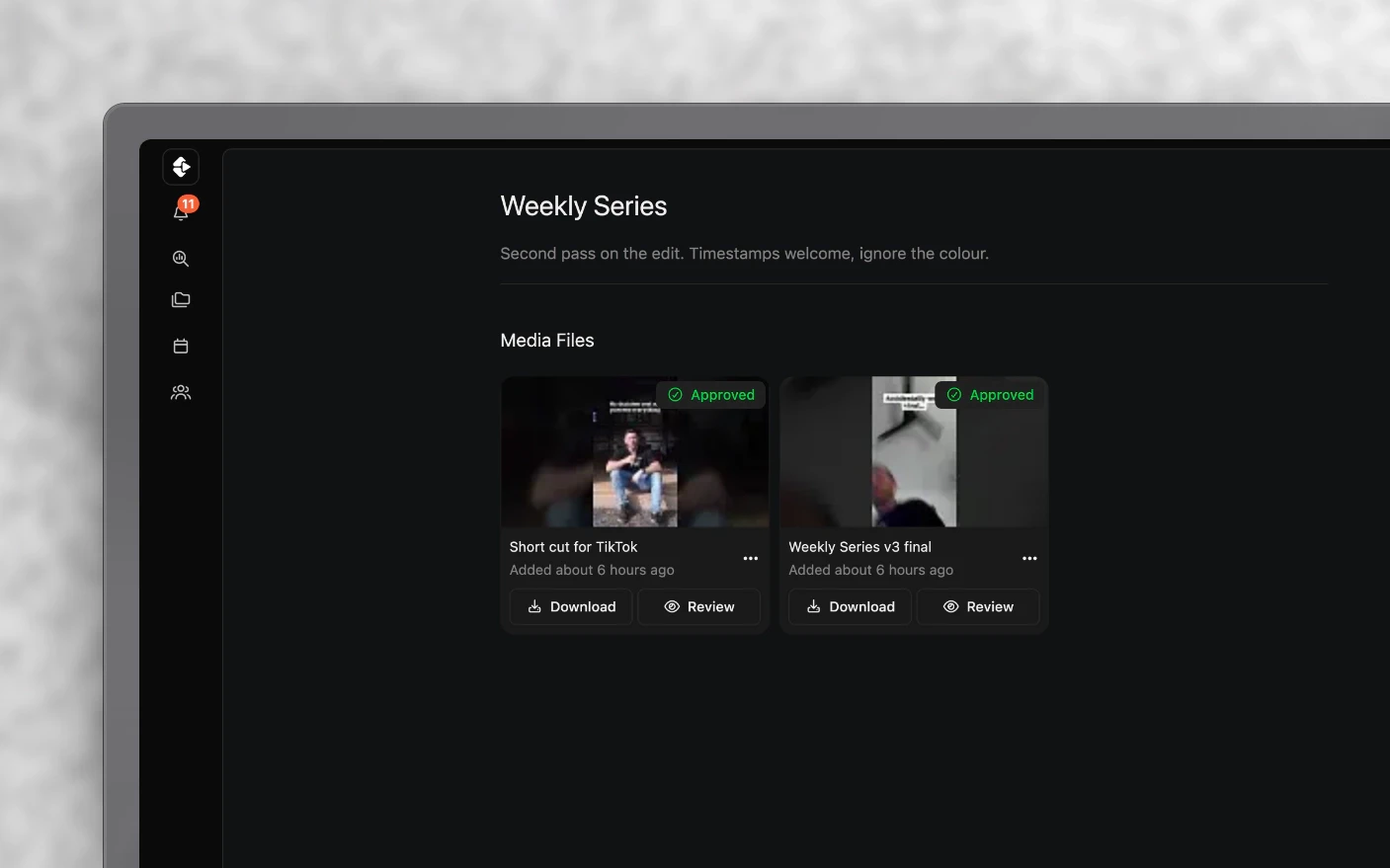
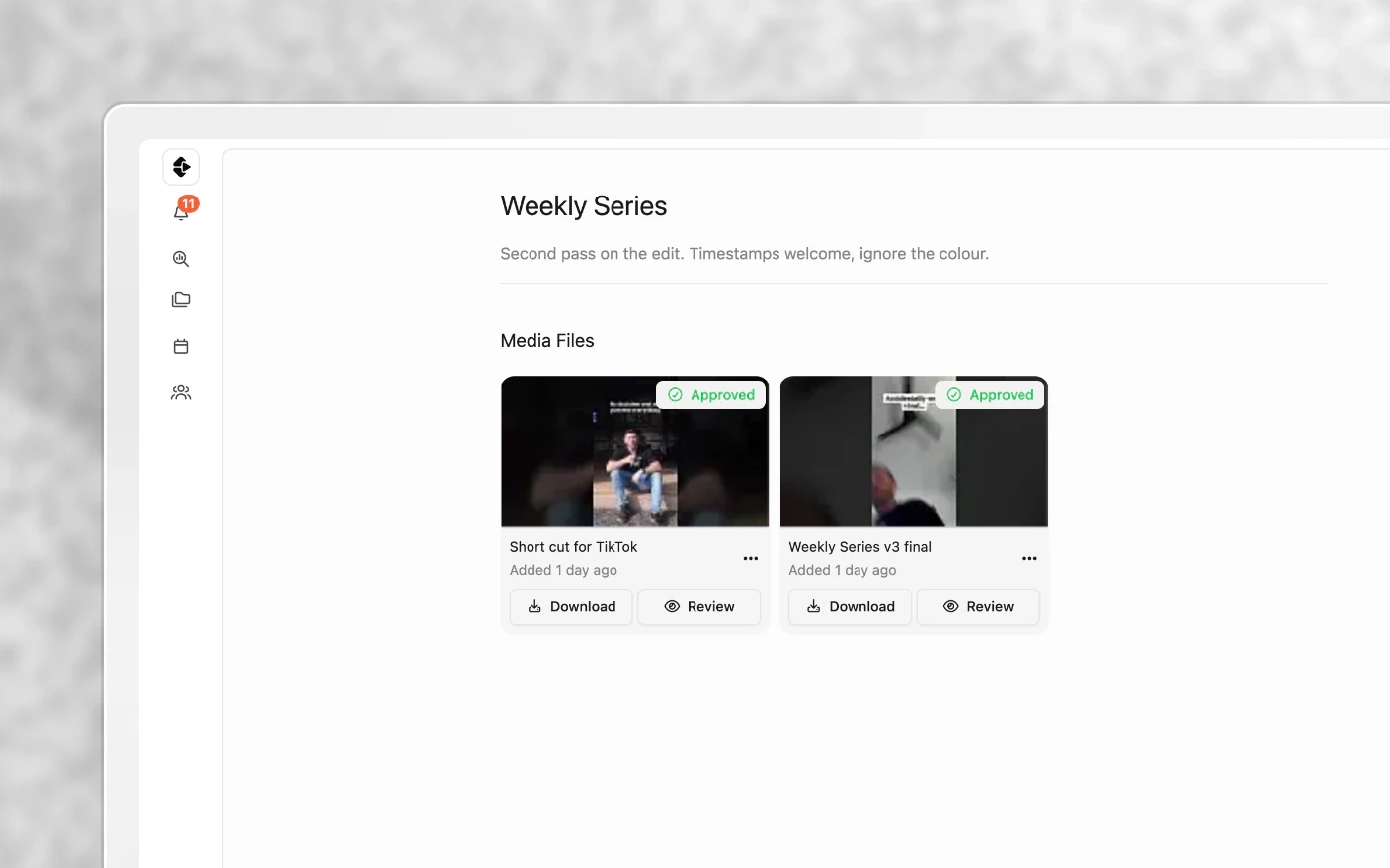
Make it easy for clients to review the work without opening up your workspace
When an external reviewer will not create an account and feedback arrives as screenshots or voice notes, the review round gets slow and hard to audit. A share link sends exactly what you choose to someone outside Clipflow. They open a URL, watch the video, and leave comments. No account, no invite, no password.
Their feedback lands back in your project alongside your team’s, so there is one thread rather than a review in Clipflow and a separate conversation in WhatsApp.
Share links are for a moment: here is the cut, what do you think? For a client who needs a standing view of everything, use a portal instead. See Client Portals.
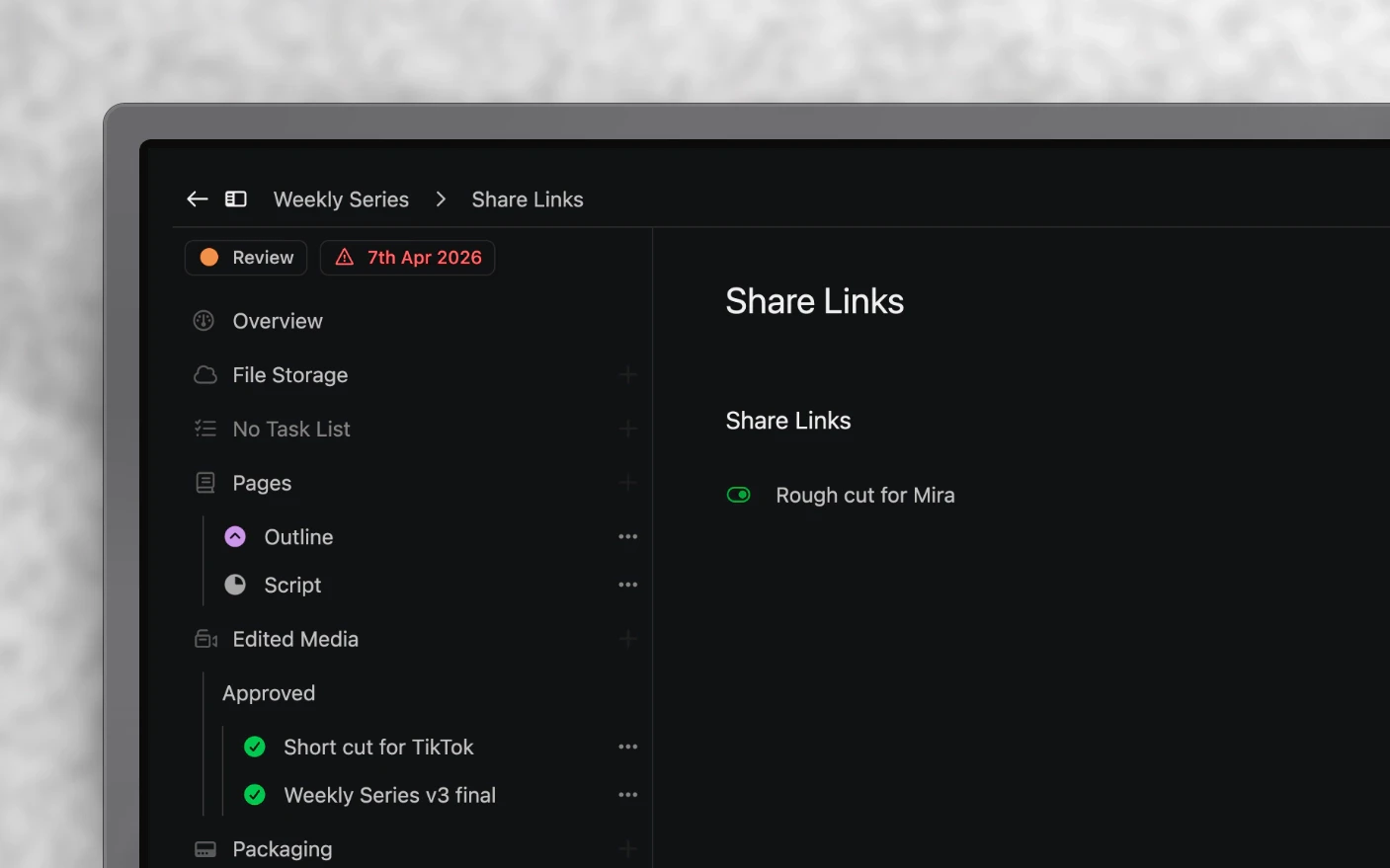
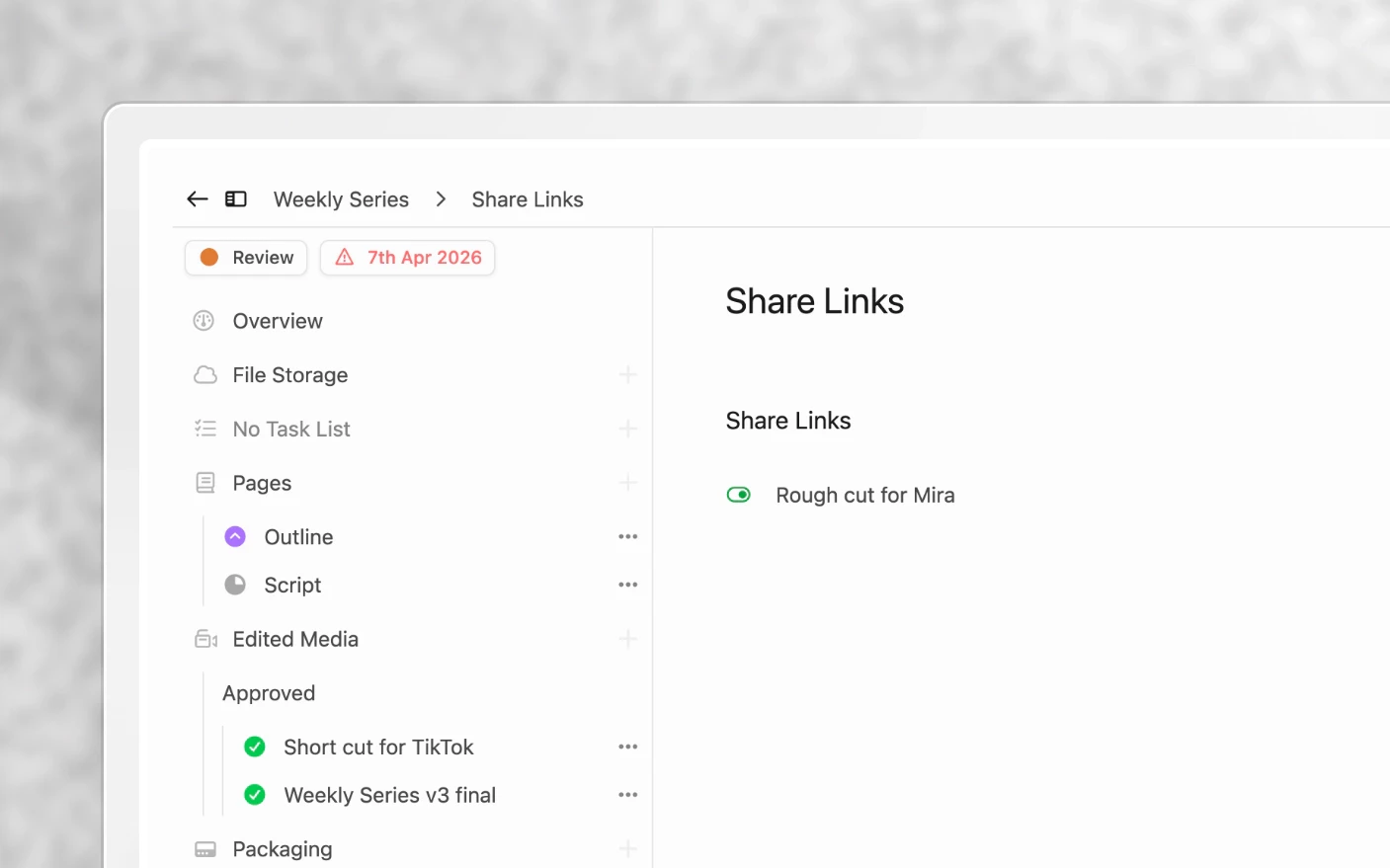
Why use share links?
Common problems solved:
- Clients who will never create an account for your tool
- Feedback arriving as voice notes and screenshots with no timestamps
- Sending a whole project when you meant to send one video
- No record of whether they actually opened it
What you get:
- A link anyone can open
- Precise control over what is visible
- Comments and reactions flowing into the project
- A view count, so “I never got it” is checkable
Step 1: Create the link
- Open the project’s Share links section.
- Choose New share link.
- Give it a title so you can tell it apart later.
Step 2: Choose what to share
Tick items in the right-hand column and choose Add to Link. You can add:
- A media file, or one specific version of it
- Thumbnails
- Packaging assets
- Pages, such as a script or outline
- Several of these at once
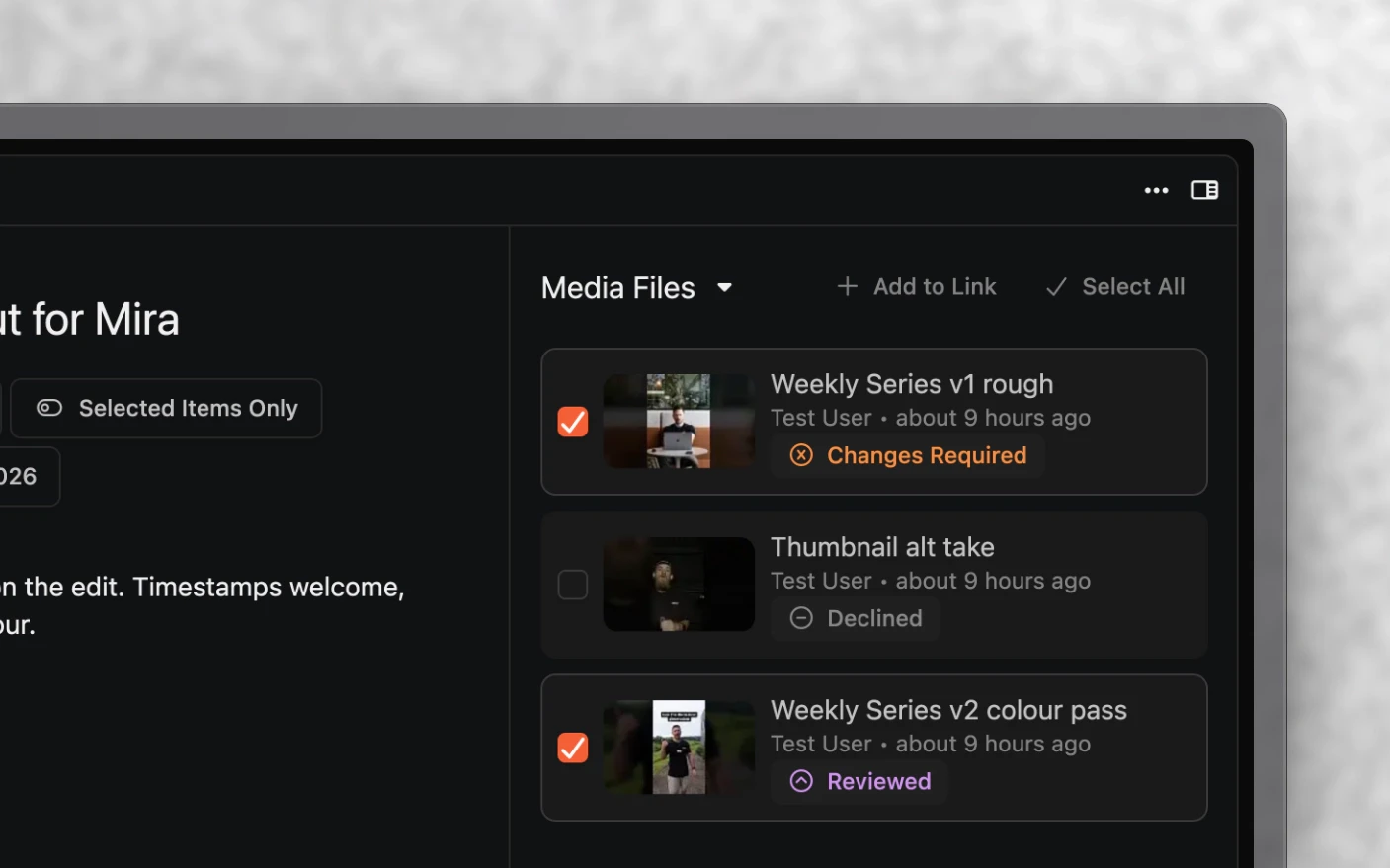
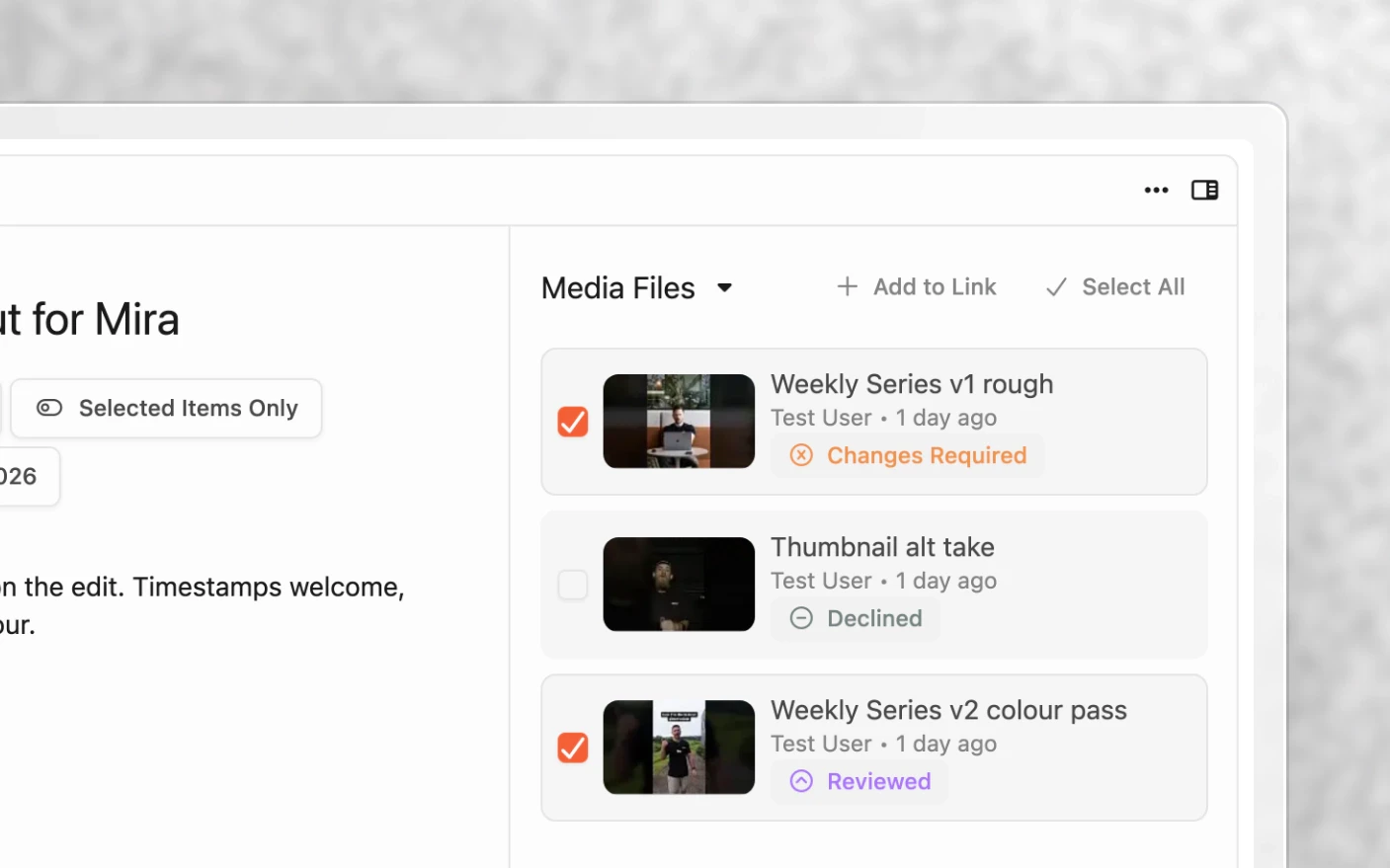
Share the narrowest set that answers the question you are asking. Sending four files when you need an opinion on one gets you an opinion on four.
You can share a specific version rather than the latest, which matters when you want feedback on the cut they have already seen.
Step 3: Add a message and an expiry
Message. Write what you want back. “Please review and let me know your thoughts” gets a vague answer. “Does the opening 15 seconds work? Ignore the colour, that is not graded yet” gets a useful one.
Expiry. Set a date to cut access off, or leave it blank for a link that does not expire. Expiry is worth setting for anything confidential, or for a client relationship that may end.
A link can also be disabled at any time without deleting it.
Step 4: Send it
Copy the link and send it however you normally reach that person.
What the reviewer sees
Someone opening the link can:
- Read your message
- View the items you shared and nothing else
- Watch videos in the browser
- Leave comments
- Leave reactions
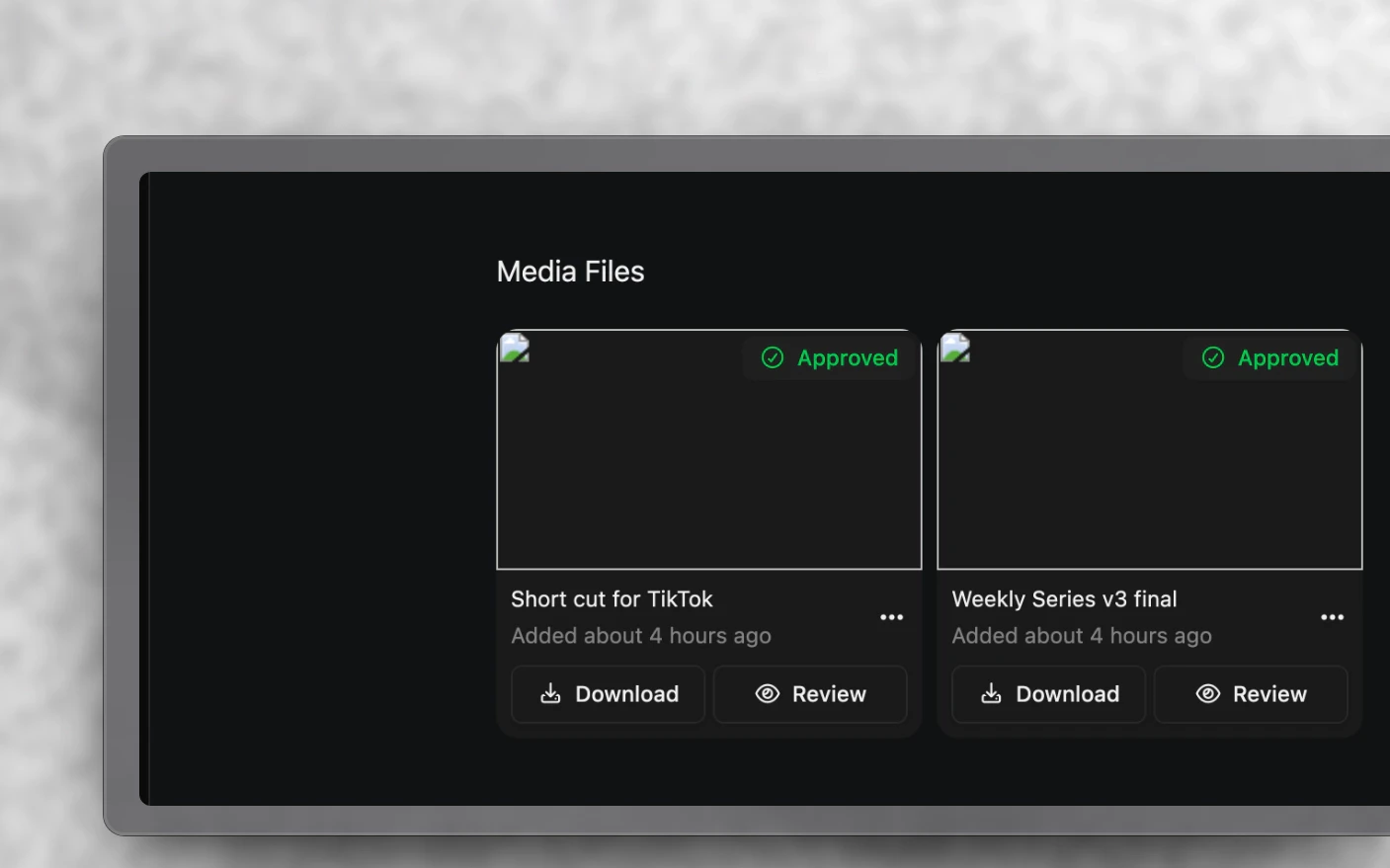
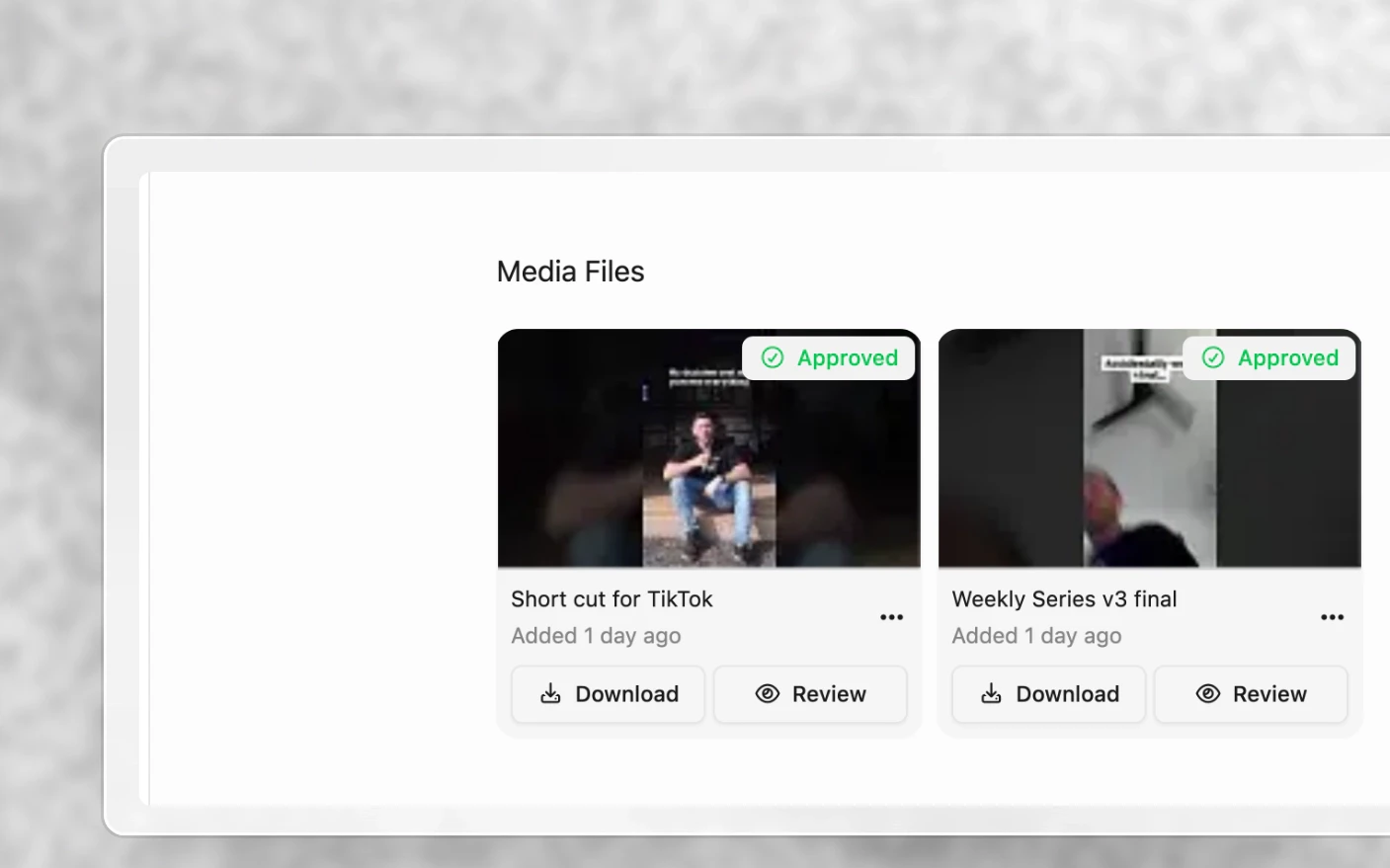
Their comments arrive in your project where your editor or team can reply. The reviewer needs no account and sees nothing about the rest of your workspace.
Tracking
Share links record views and comments, so you can tell whether a link was opened before you chase it.
Tips and best practices
- Ask a specific question in the message. It is the single biggest factor in the quality of what comes back.
- Say what is not finished. Without that, you will get notes on unfinished colour, temp music, and placeholder captions every time.
- Share one thing when you need a decision. Share several when you want a comparison. Do not mix the two.
- Set an expiry on client work so old links do not stay live indefinitely.
- Use a portal for the ongoing relationship and share links for specific asks. See Client Portals.
- Check views before you follow up. It saves an awkward message.
Frequently asked questions
Does the reviewer need a Clipflow account?
No.
Can they see the rest of my project?
No. They see only the items you added to the link.
Can I share one version rather than the latest?
Yes. Pick the version when you add the item.
Can I stop a link working?
Disable it, set an expiry, or delete it.
Where does their feedback go?
Into the project, alongside your team’s comments.
Can I tell if they opened it?
Yes, views are recorded on the link.
Can I share a script rather than a video?
Yes. Pages can be added to a share link. See Project Pages.
Related articles
- Client Portals: a standing link for the whole board
- Media Review and Notifications: internal review
- Inviting Clients: full client access with an account
Was this page helpful?
Related articles
Need more help with this?
Contact support