
How to schedule social media posts without losing track of what is ready to publish
Plan social posts across projects, fill channel time slots, and auto-publish approved content on schedule.
Updated
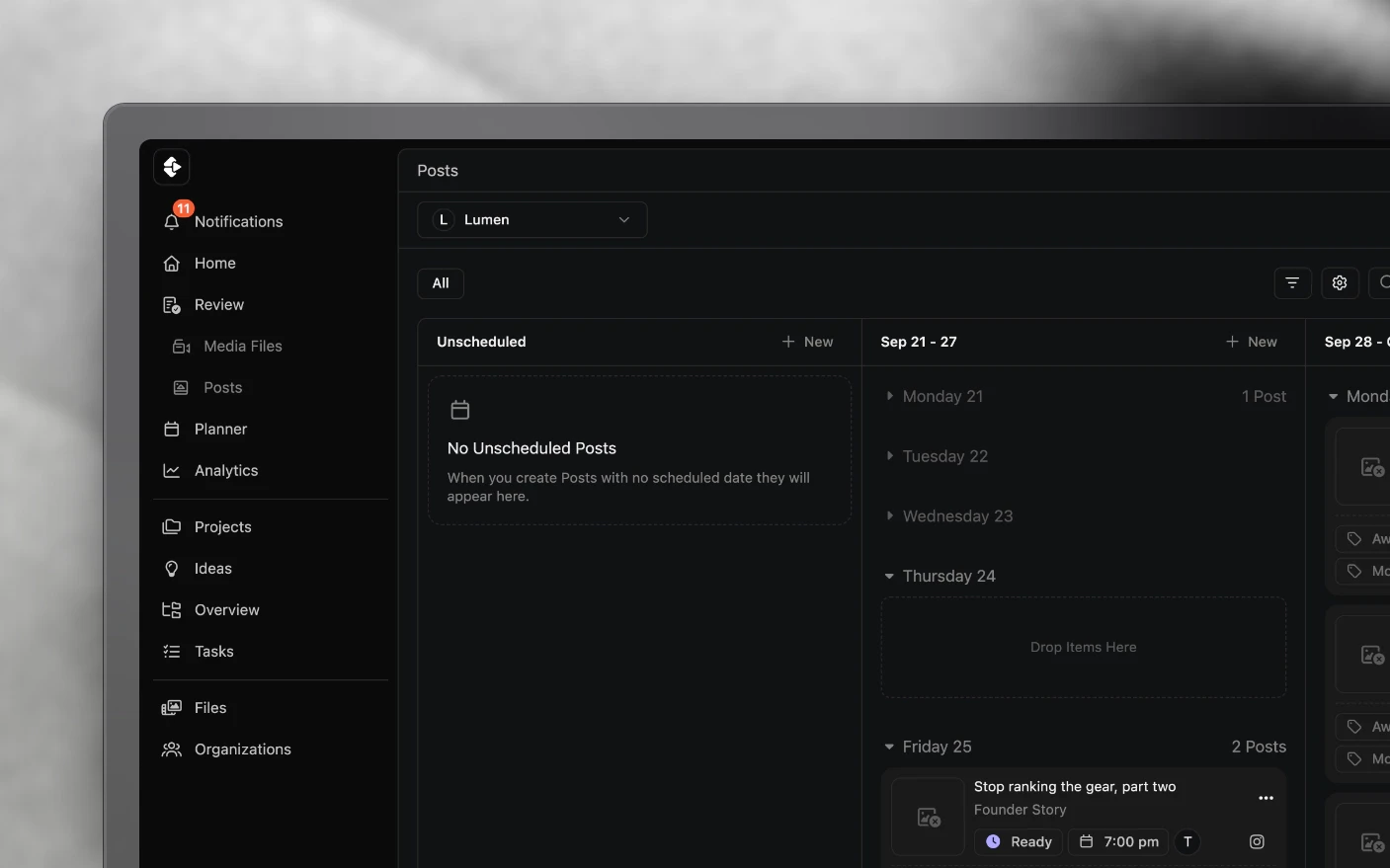
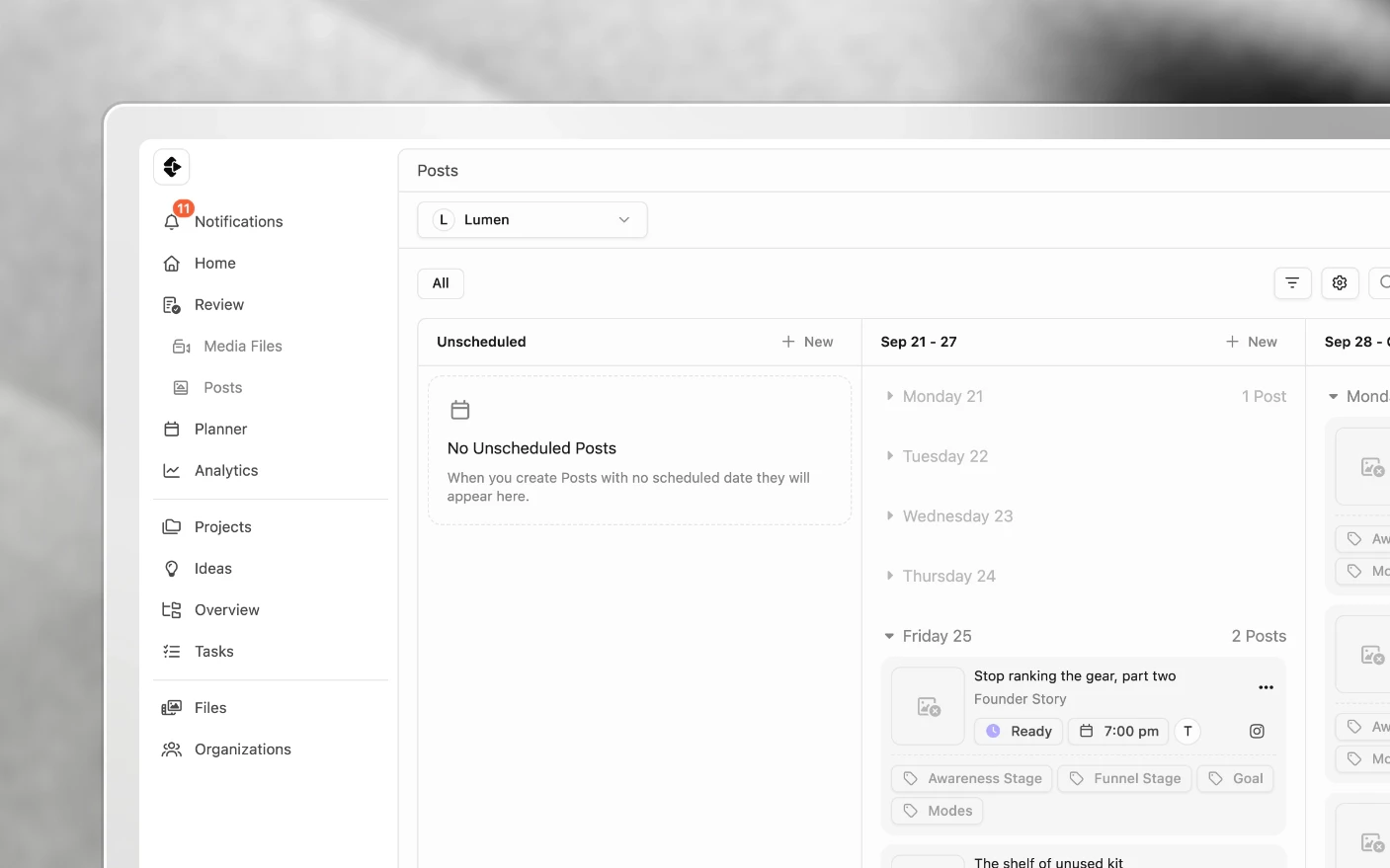
Turn approved content into a publishing rhythm your team can rely on
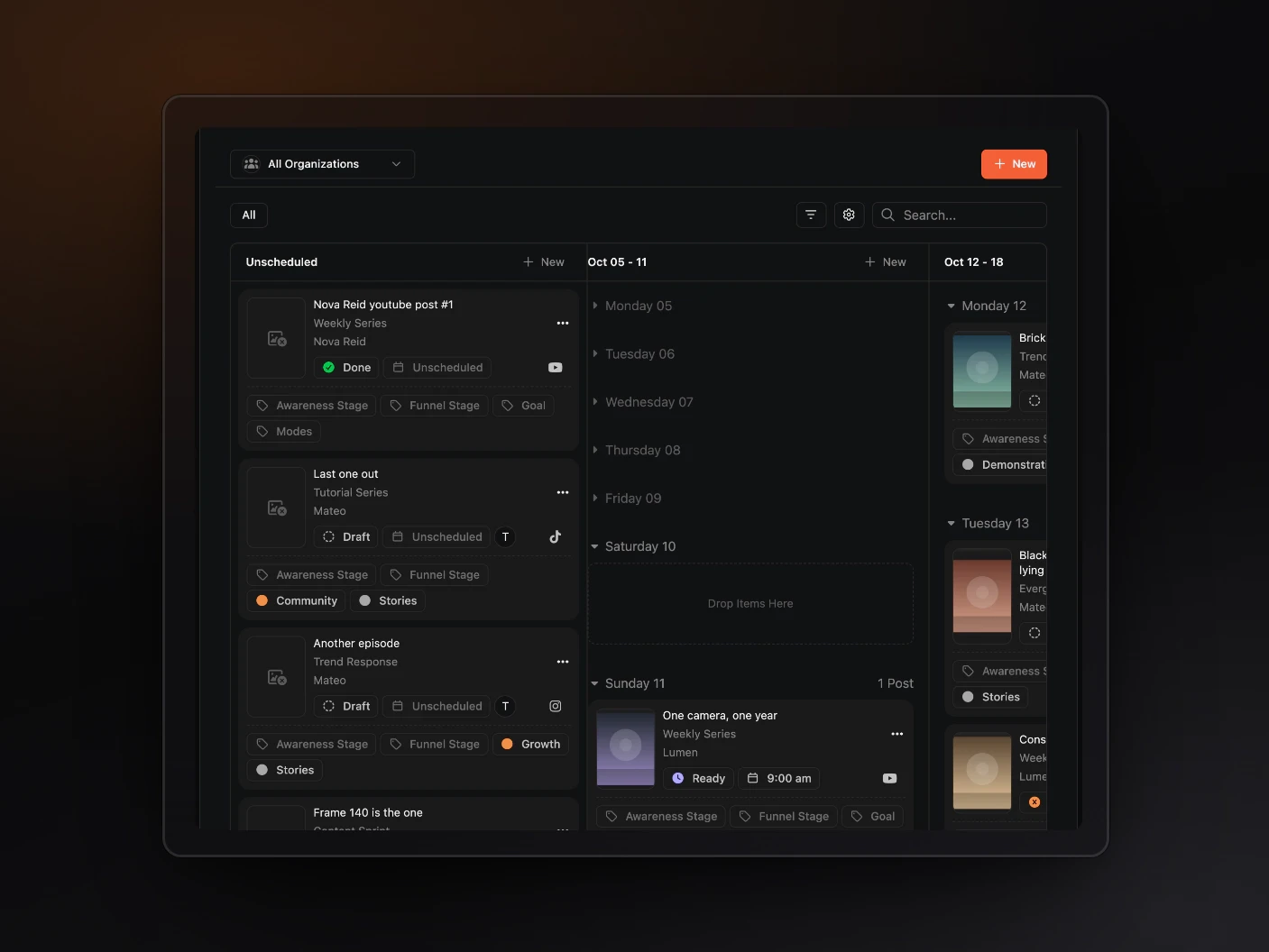
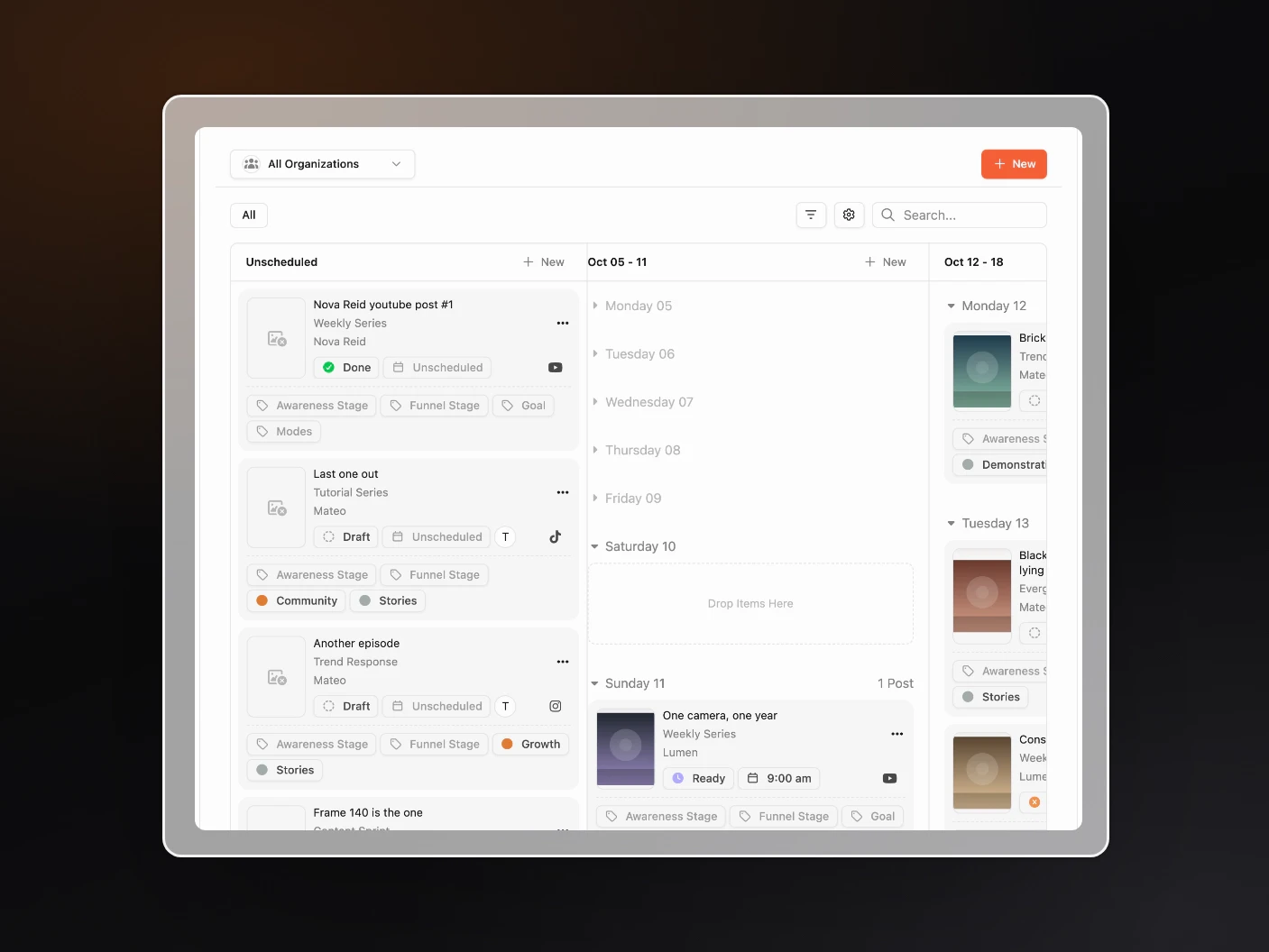
When content lives across projects, it is easy to miss a publishing gap or discover too late that three posts are aimed at the same slot. The Planner is your content calendar across projects: every Post with a publish date, plus unscheduled drafts waiting on the side. Filter by platform, organization, and status so you see what goes out this week rather than one project at a time.
With channels connected and time slots set, marking a post Ready can queue it into the next open slot for auto-publish. The Planner is no longer only a place to line up posts for copy-paste into Meta.
Why use it?
Common Problems Solved:
- Opening every project to see what is due
- Feed and trial posts fighting for the same window
- Gaps or pile-ups on the calendar
- Agencies juggling multiple client calendars
What You Get:
- One calendar across projects and orgs
- Filters for platform, client/org, and status
- Unscheduled posts parked until you plan them
- Hand-off with auto-publish when slots + Ready status are set
Before you use auto-publish
- Connect the channel (Instagram, Facebook, etc.).
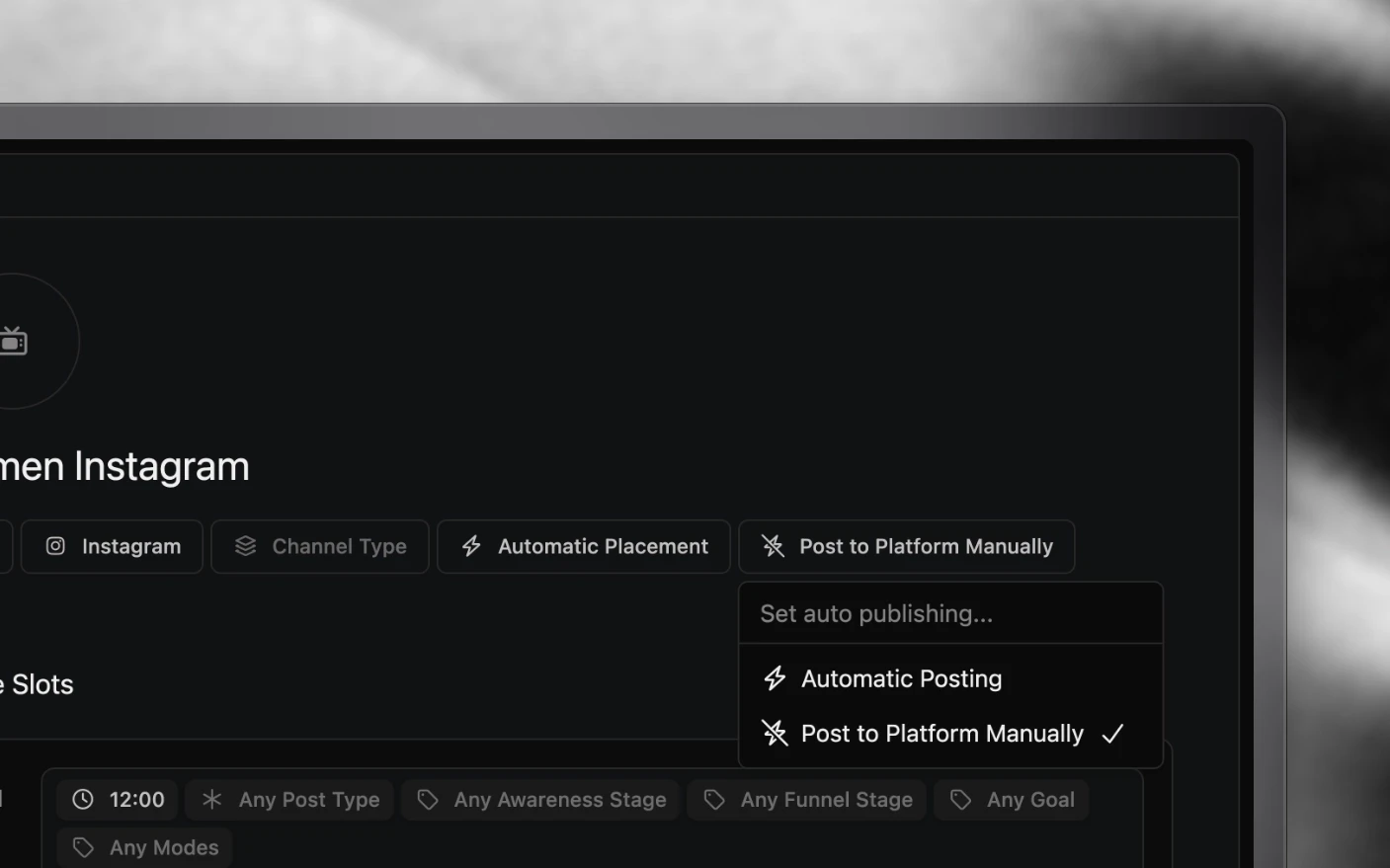
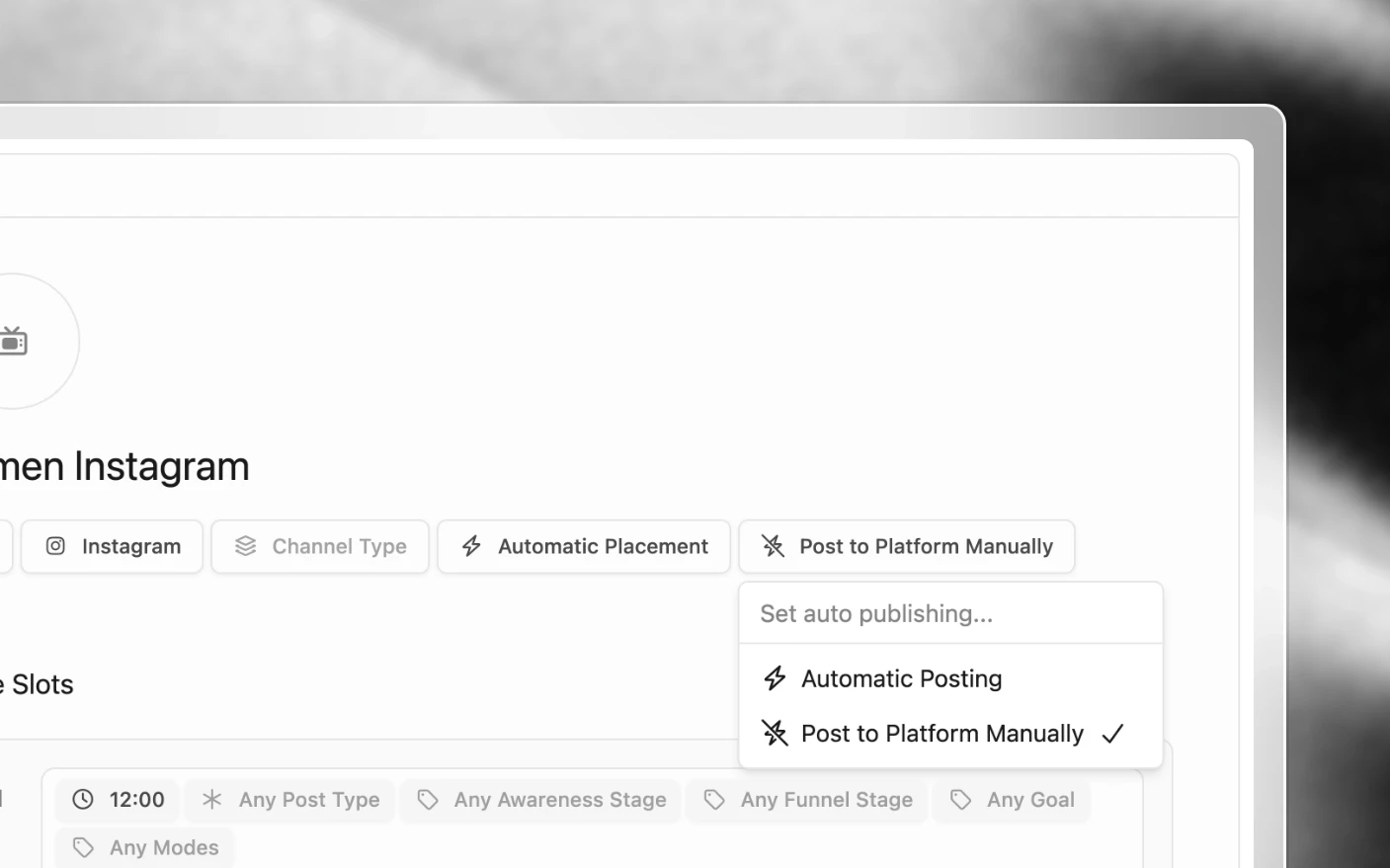
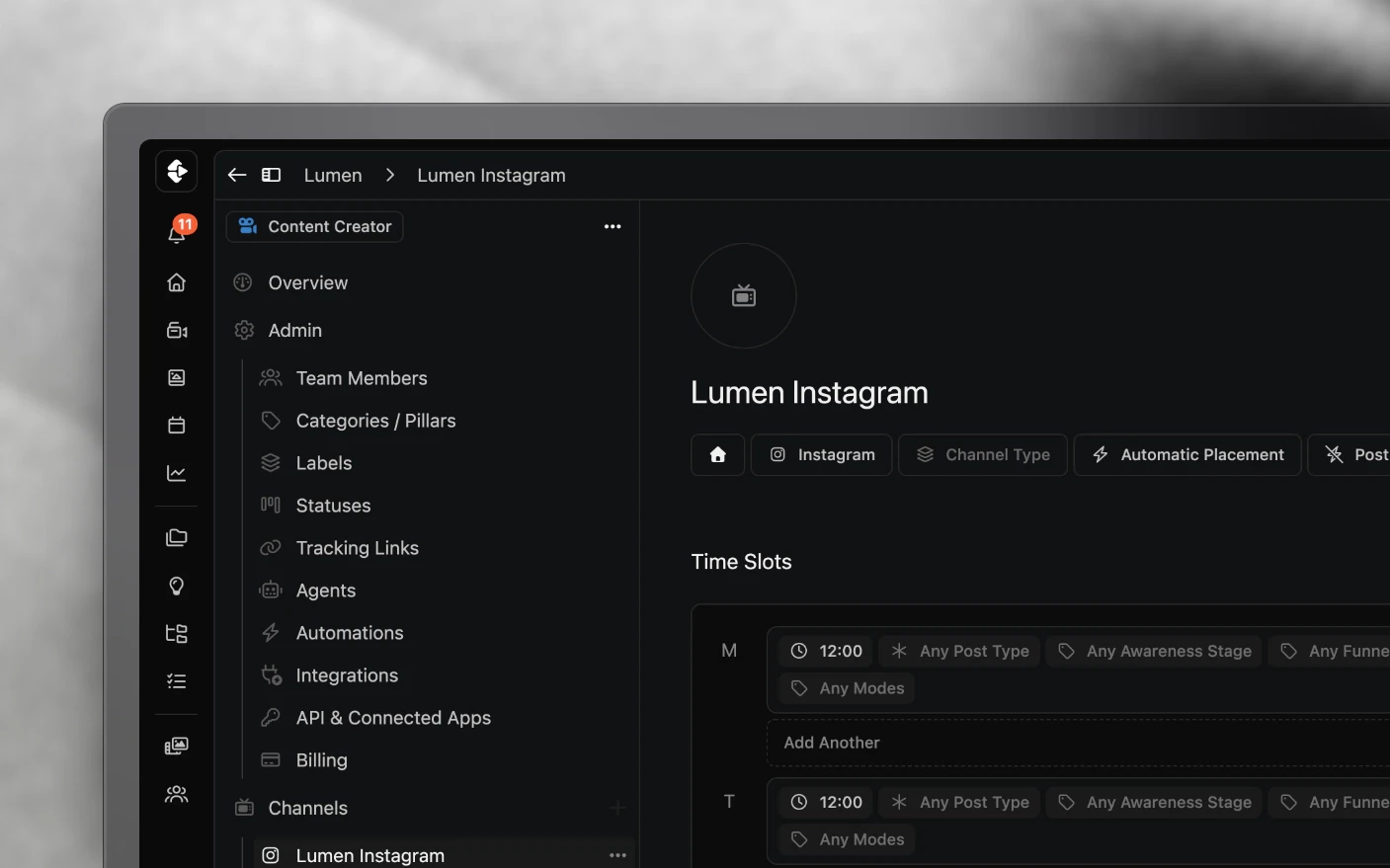
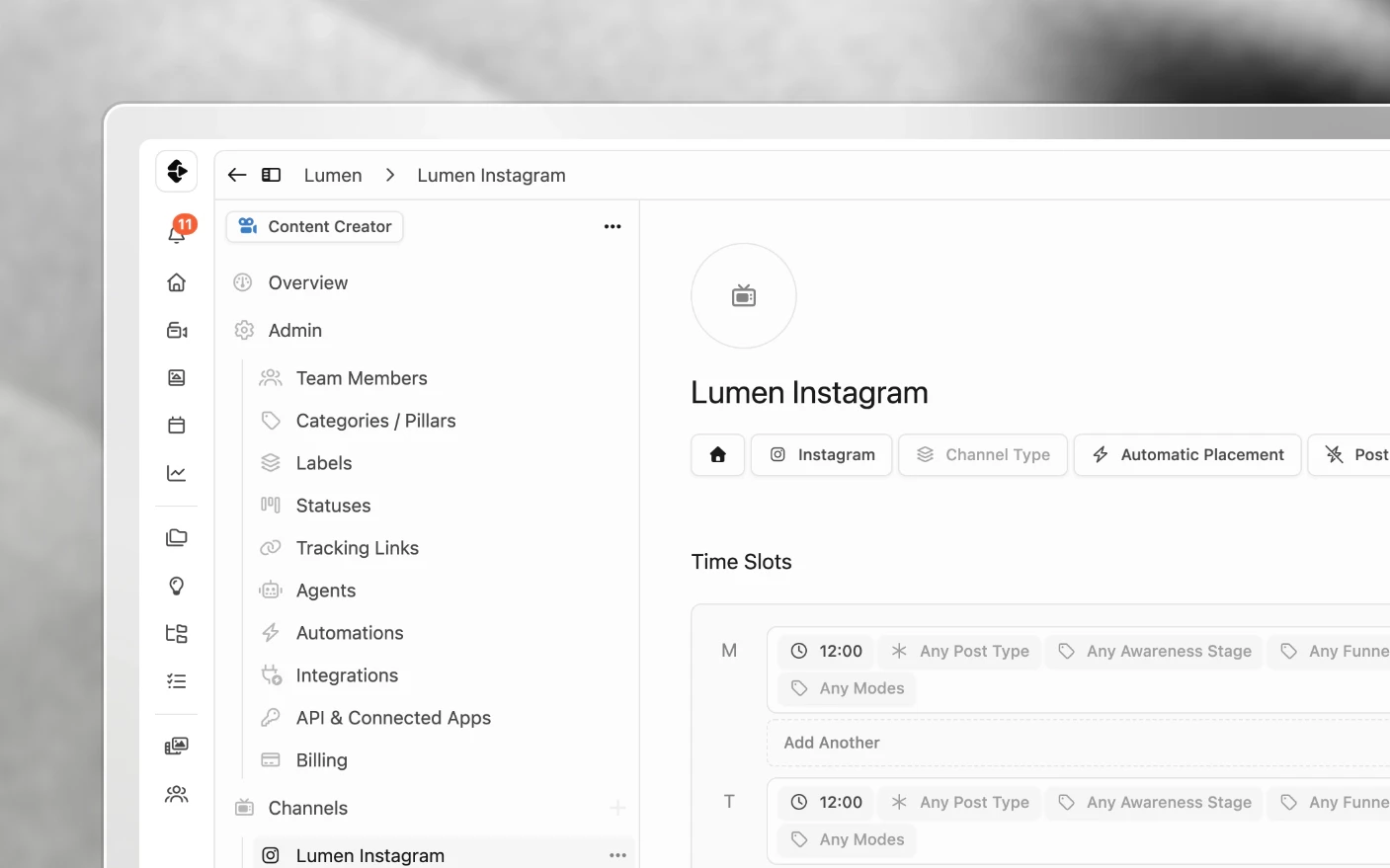
- Check the channel is on Automatic Posting. It is the default once the connected account can publish. On Post to Platform Manually, publishing is left to you.
- Set time slots on that channel (include or exclude post types, for example trial-only at 12:00 and feed at 16:00).
- Create posts (manually or via automation) and get captions/media right.
For the full Instagram Trial Reel volume path, see Bulk Schedule Instagram Trial Reels.
How to open the Planner
- Click Planner in the main navigation. It opens on the organization you are working in.
- Posts with dates appear in the calendar / day columns.
- Posts without a date sit in the unscheduled section (usually left rail) until you plan them.
Filters and navigation
- Platform: Instagram Trial Reel, Reel, Facebook, YouTube, and so on
- Organization: one client or brand at a time, or All Organizations to see every organization’s posts together
- Status: Draft, Changes Required, Reviewed, Declined, Ready, Done
- Click a post: jump into the project post to edit caption, media, or date
The label filter is only offered once you have picked a single organization, because labels belong to one organization. When you belong to more than one organization, each post also shows the name of the organization it belongs to.
Saved views and a default
Save a filtered Planner as a view and it becomes a tab you can return to. See Custom Views for how views work.
- Inside one organization, the view belongs to that organization, and saving one needs an admin or manager role.
- With All Organizations selected, the view is personal to you and appears in every organization you belong to.
To make a view the one the Planner opens on, open the view and choose Set as Default in its settings. The default is set per organization and is starred in the view tabs. The Planner item in the main navigation then opens it for the organization you are working in.
How Ready posts get a time
- Draft the post (or let an automation create it when media is approved).
- Review caption and media.
- Set status to Ready (from the post, or faster via Review → Posts with keyboard R).
- Clipflow assigns the next matching time slot for that post type on the channel.
- Confirm the date/time in the Planner.
If no slot matches (wrong post type, or slot full / missing), the post stays Ready but unscheduled until you fix slots or set a date manually.
Planning your week
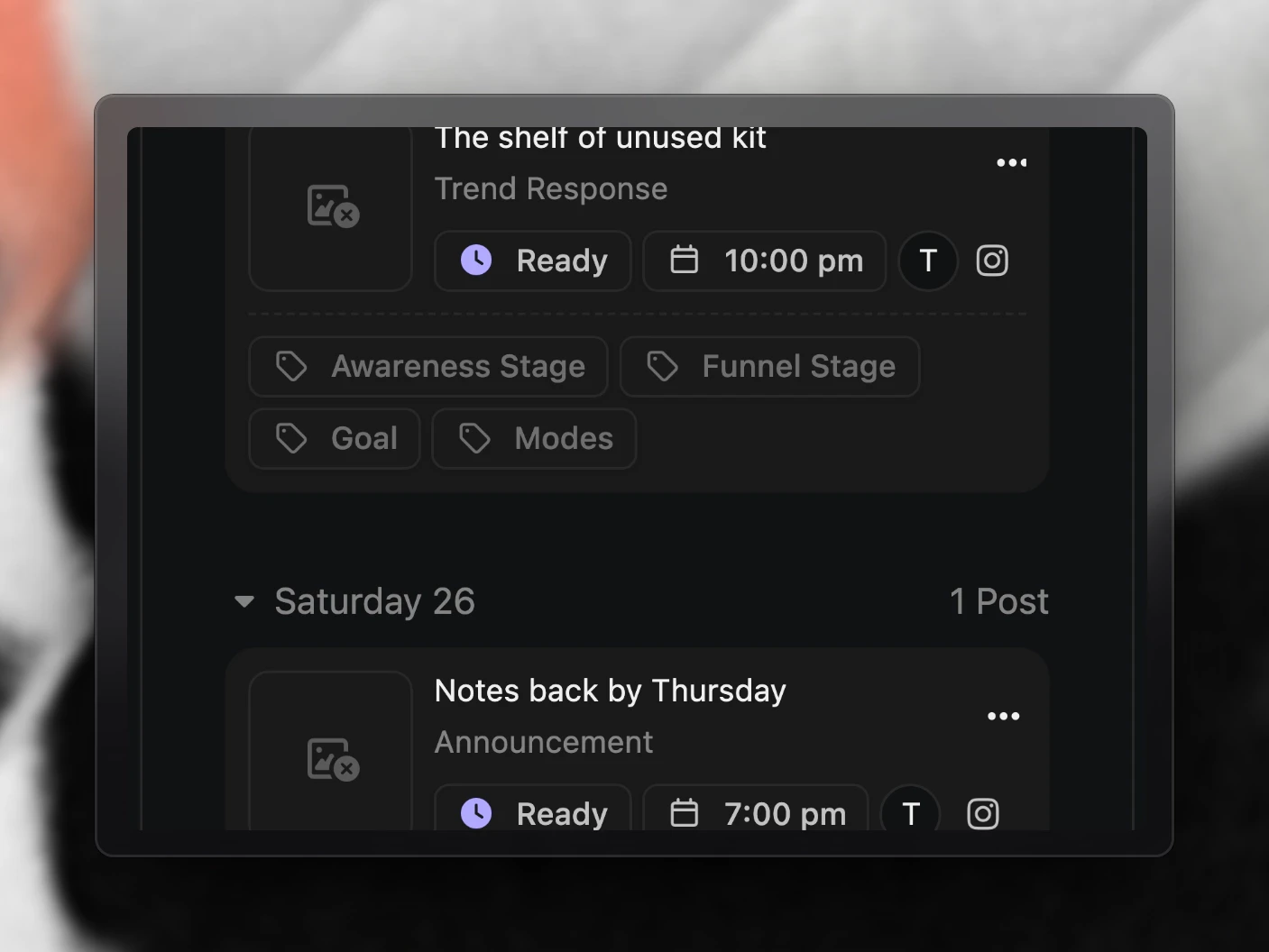
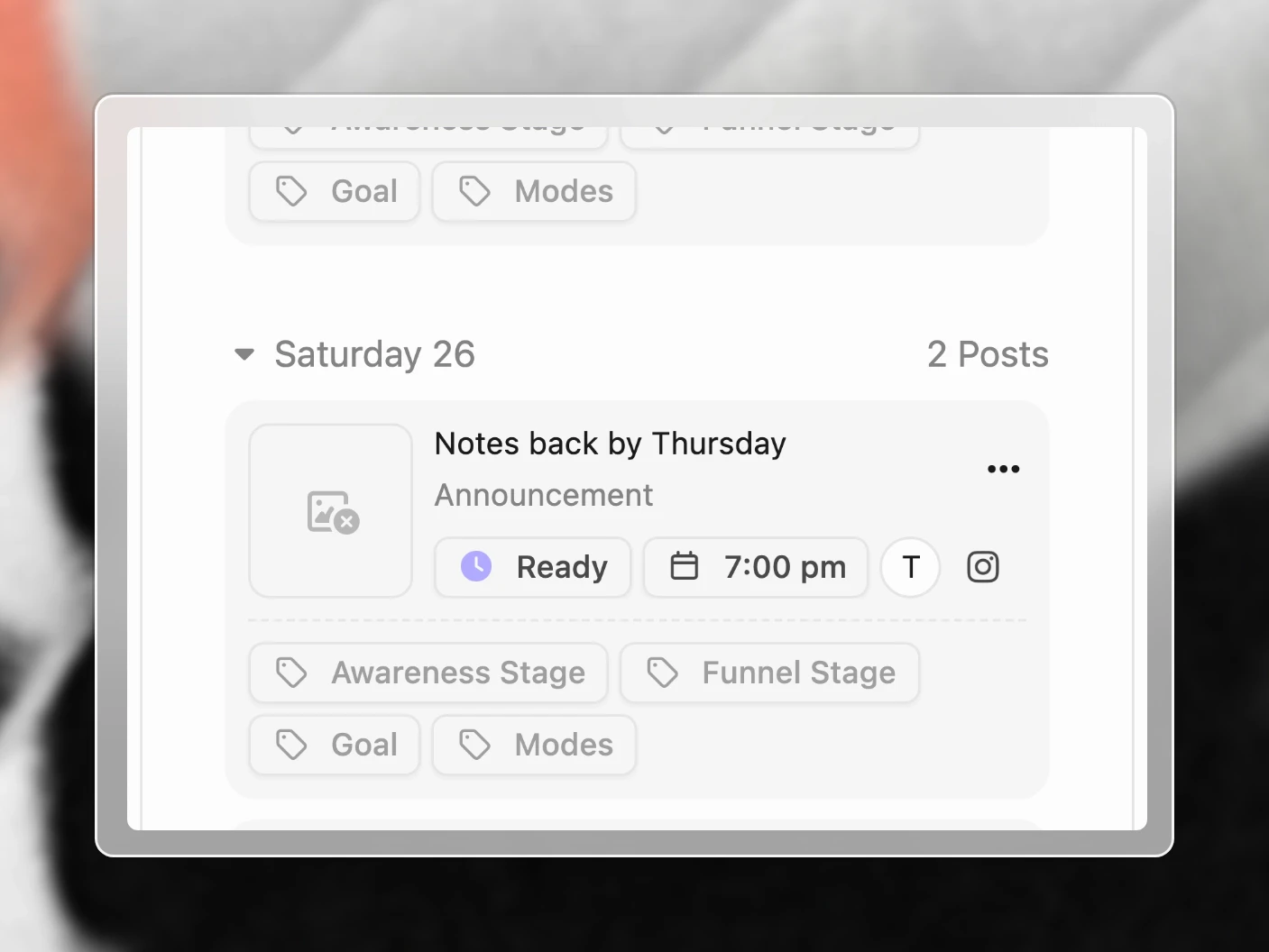
- Open the Planner on Monday (or your planning day).
- Filter to this week; spot empty days and overloaded days.
- Pull from the unscheduled rail or create placeholders in projects.
- Mark Ready only what should actually publish.
- For agencies: filter org-by-org, then remove the filter to see capacity across clients.
Tips and Best Practices
For solo creators
- Work a few days ahead so Ready posts always fill tomorrow’s slots.
- Separate trial and feed slots so tests do not steal main-feed windows.
- Scheduling itself does not cost you reach. Weak content does, and volume teams schedule trials and feed the same way.
For teams and agencies
- Editor approves media → automation drafts posts → scheduler owns Ready in Review → Posts.
- Filter by org for client reviews; unfiltered view for studio capacity.
- Use status (Draft → Ready → Done) as the handoff language, not Slack threads.
Hygiene
- Fix automations before deleting hundreds of bad drafts, because there is no bulk delete today.
- Reconnect channels if publishes start failing (see Connect Social Platforms).
Frequently Asked Questions
Does the Planner show every organization I belong to?
Yes. Choose All Organizations in the organization selector to see them together, or pick one to focus on a single client or brand.
Does the Planner publish for me?
When the channel is connected, time slots are set, and the post is Ready, Clipflow can auto-publish into those slots. You can still set dates manually. Always confirm the first few runs in the Planner and on the platform.
Does scheduling reduce Instagram reach?
No. Teams running volume in Clipflow see the same reach on scheduled posts (including trial reels) as native phone posts. Accounts that “schedule and flop” usually have weak creative, not a scheduler penalty.
How do I schedule Instagram Trial Reels in bulk?
Use automations + trial-only time slots + Review → Posts. Full walkthrough: Bulk Schedule Instagram Trial Reels.
Can I reschedule from this screen?
Open the post and change the date/time, or adjust channel time slots so Ready posts land differently.
Where do posts without dates go?
The unscheduled section beside the calendar until you assign a date or mark Ready into a slot.
Does this show projects or only Posts?
Posts only. Use the project list or Project Overview for project-level work.
Related articles
Was this page helpful?
Related articles
Review Draft Posts
Work through a queue of draft posts, fix media, caption, date and channel in place, mark each one Ready and move on, mostly from the keyboard.
Carousels and Image Posts
Where images go in a project, how to build a carousel in slide order, why PNGs get a JPG copy, and each platform's carousel limits.
Connect Social Accounts
Connect Instagram, Facebook, YouTube, and more for social publishing, scheduling, and performance analytics.
Need more help with this?
Contact support