
How to connect your social accounts so your team can publish and measure content in one place
Connect Instagram, Facebook, YouTube, and more for social publishing, scheduling, and performance analytics.
Updated
Give your content operation a reliable connection to every channel it runs
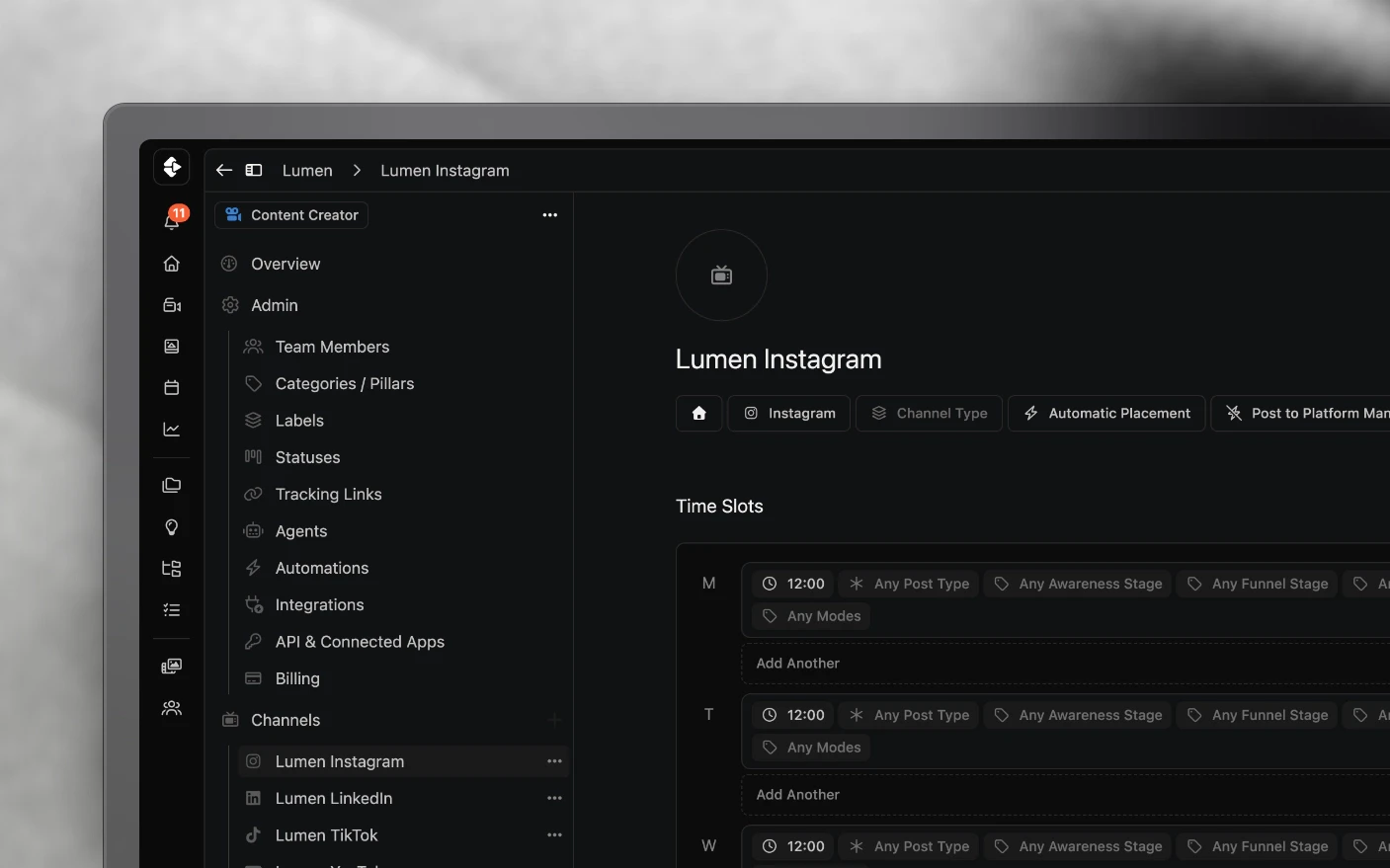
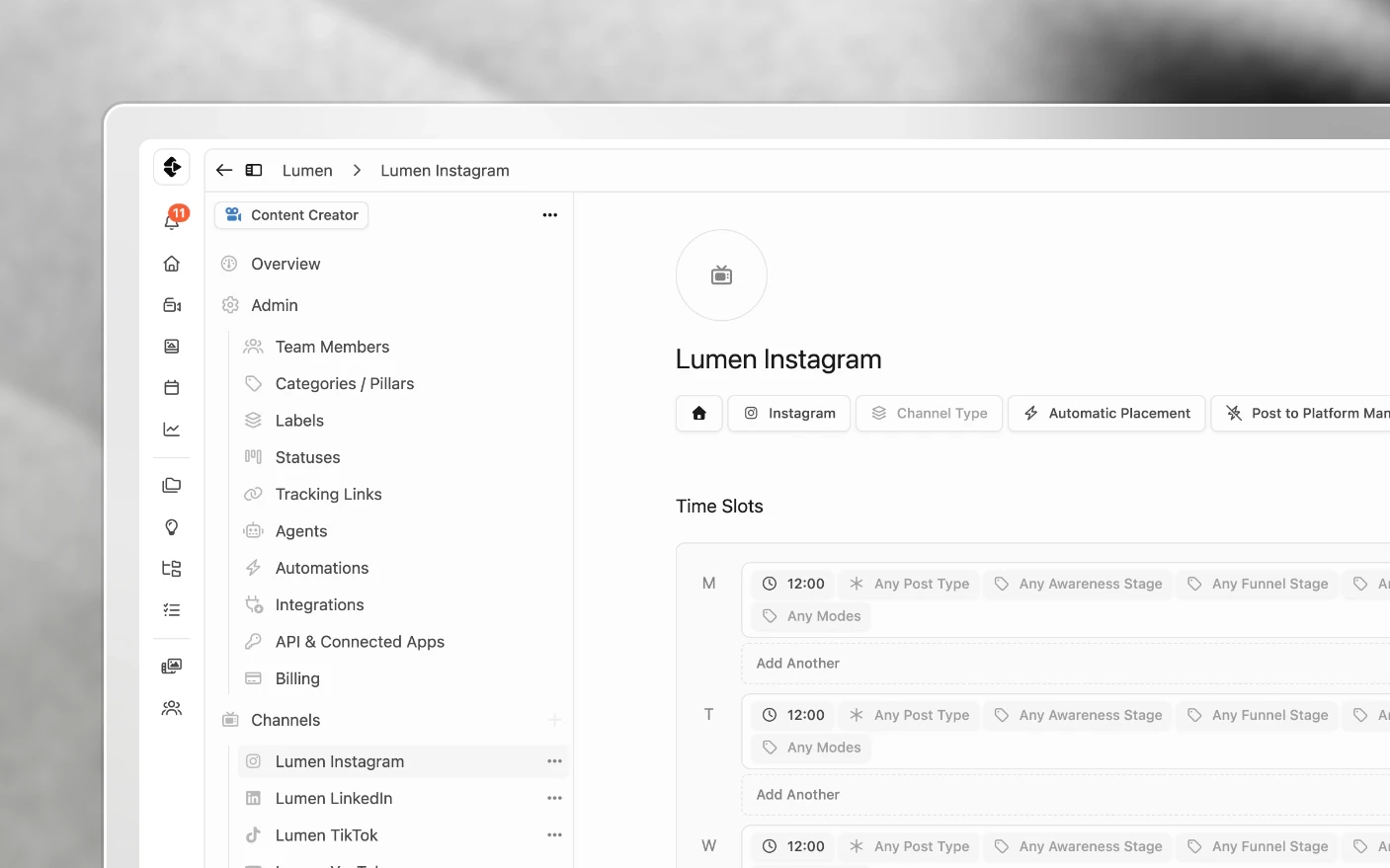
Social accounts are the bridge between a production plan and the channels where the work has to perform. Connections link your Instagram, Facebook, YouTube, TikTok, and other channels to a Clipflow organization via OAuth. Once connected, you can create platform-specific posts, set time slots, auto-publish, and pull performance into analytics.
Connections live on the organization, not your personal login. That matters for agencies and multi-brand teams.
Why connect accounts?
Common Problems Solved:
- Posts and projects with no clear destination channel
- Scheduling and auto-publish blocked because nothing is connected
- Agency work mixed across brands with no clean split
- No analytics without a linked channel
What You Get:
- Posts tied to real channels (Reel, Trial Reel, Facebook Reel, Short, etc.)
- Time slots and auto-publish for connected platforms
- Analytics on the channels you connected
- Per-client / per-brand isolation when you use separate organizations
Before you connect
- Know which organization should own the channel. Open the Organizations list and select that organization before you start.
- For Instagram: account must be Business or Creator (not personal), with a Facebook Page you admin.
- Have login access to the social account (or a teammate who can complete OAuth).
How to connect an account
- Open the Organizations list and select the organization that should own the channel.
- In that organization’s Channels section, click Add Channel.
- Choose Connect to connect a social account, or Add Custom to create a channel by hand without connecting an account. Connect channels are set up for automatic publishing.
- For Connect, choose the platform and complete the OAuth / permission screens, then click Continue to return to the organization you started from.
- Confirm the account appears as connected.
Clipflow shows platform-specific requirements during the flow (e.g. Instagram Business + Facebook Page). Follow those prompts if a connection fails.
Permissions
Clipflow requests access to view profiles, basic account info, and create/manage posts as needed for publishing and analytics.
When you connect Facebook, Facebook also asks for business permissions. That is what lets Pages owned by a business show up when you choose a Page to connect. A Facebook account connected before this was added needs reconnecting to see business-owned Pages. You can revoke access anytime in Clipflow or in the platform’s app settings. Clipflow never sees your password, because authentication is OAuth.
Second Instagram (or second brand)
You cannot attach two Instagram accounts under one Clipflow profile the way Meta lets you switch accounts on your phone.
What to do:
- Create a new organization for the second brand.
- Sign it up with a unique email that has not been used on Clipflow before.
- Select that organization from the Organizations list, then click Connect channel there.
- Ask support if you need orgs merged or billing bundled later.
Same pattern for a client brand: one org per brand/client that needs its own channels.
Facebook alongside Instagram
Connecting Instagram does not automatically create Facebook Reel posts in Clipflow.
- Connect the Facebook Page (including fan pages that Meta now allows for reels) as its own channel when you want Facebook distribution.
- Add a Facebook Reel (or equivalent) create-post action in your feed automation. Meta’s native “also share to Facebook” is a separate path; in Clipflow you schedule Facebook explicitly so you can review it.
See Bulk Schedule Instagram Trial Reels for the automation + time-slot pattern; the same automation surface adds Facebook Reel as an action.
Managing connections
View
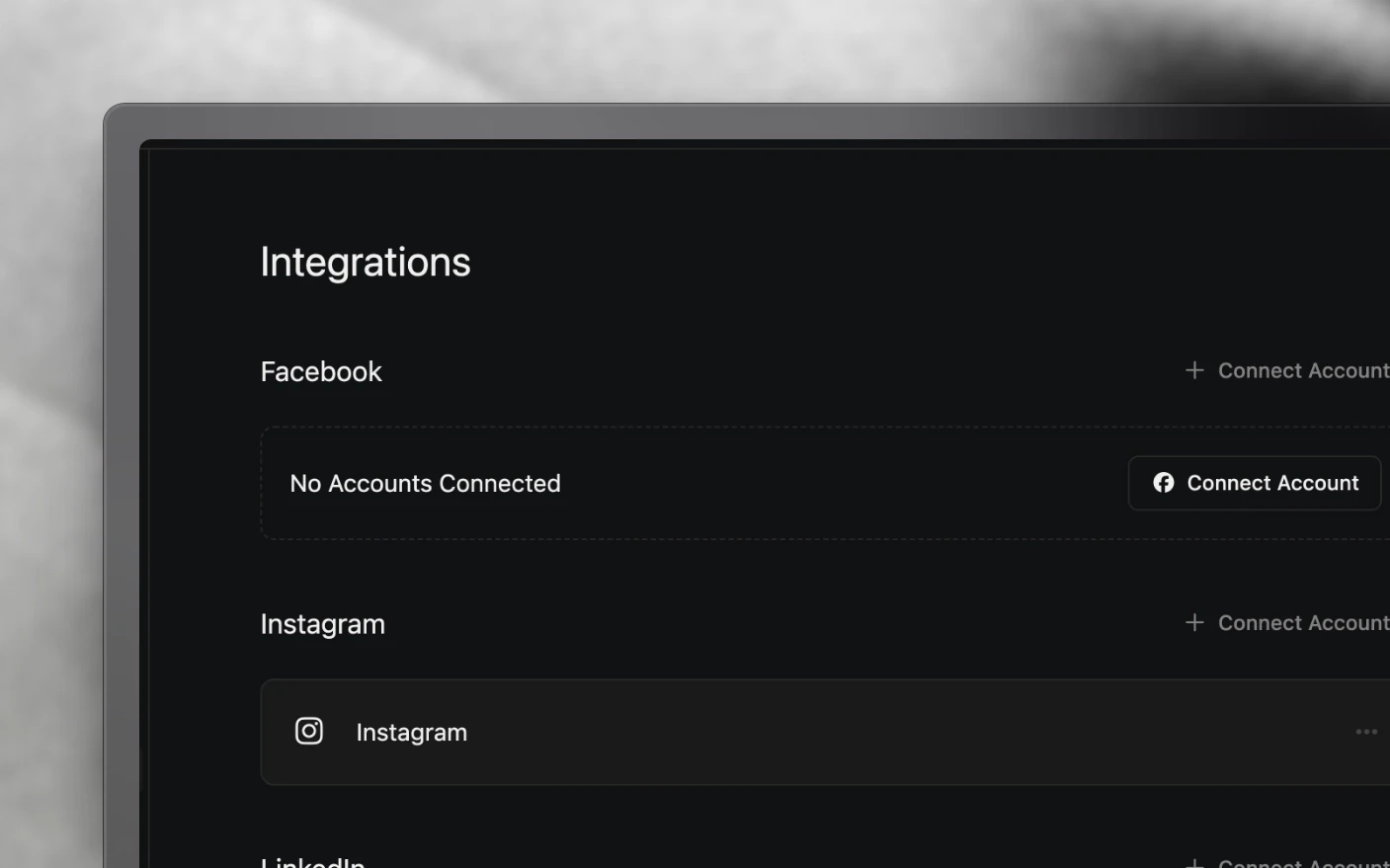
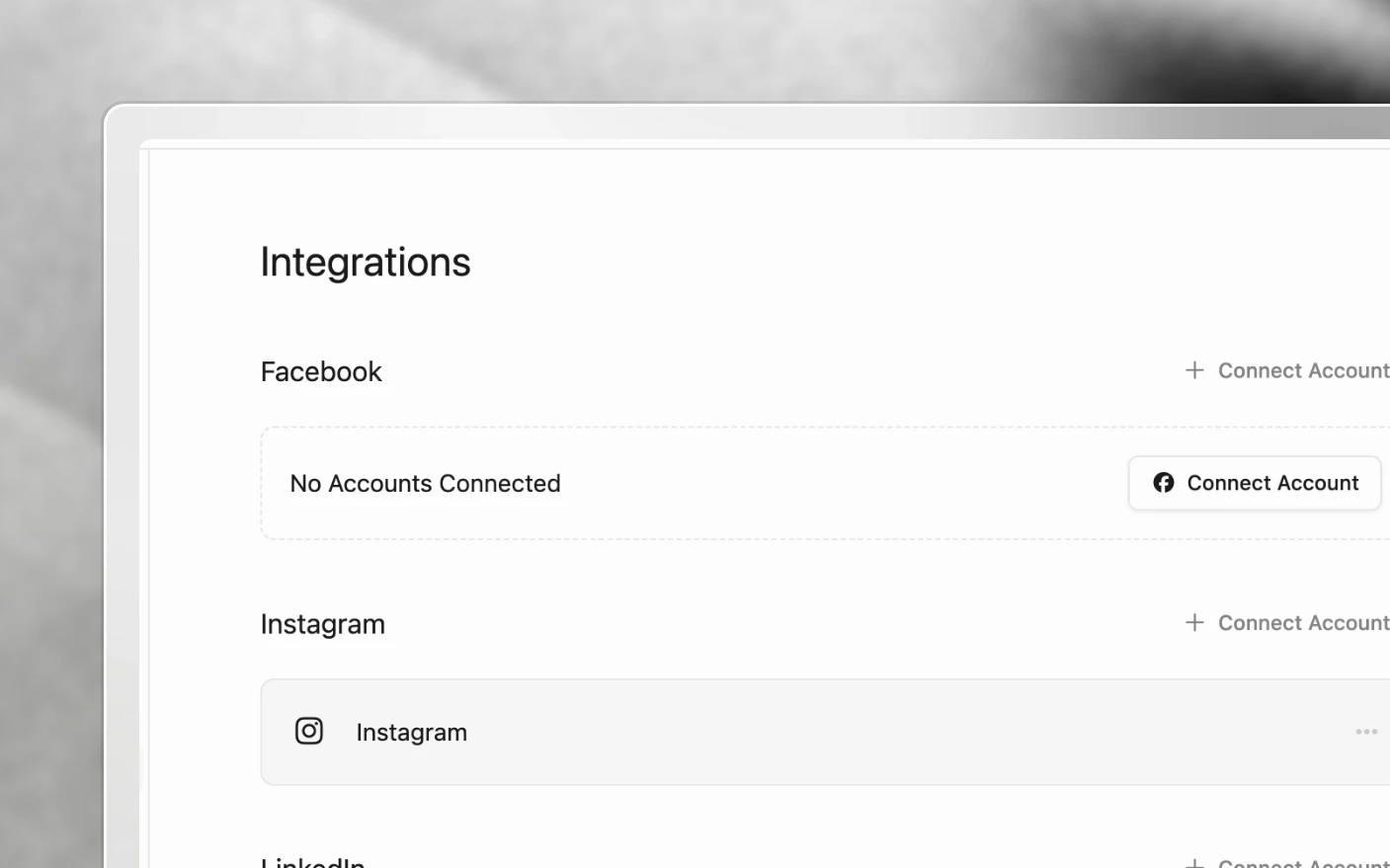
Organization settings → Integrations shows connected accounts and their status.
Disconnect
Actions menu (⋯) on the account → Disconnect → confirm. Reconnect anytime with the same flow.
Reconnect (expired / broken)
Common causes: password change, revoked app permissions, expired token. The channel page shows Missing Account Permissions or Account Not Connected when this happens. Open Integrations → Connect Account for that platform → re-authenticate, and leave every permission ticked. See Post Statuses and Failed Posts.
For agencies
- Create (or use) a separate organization per client when channels must stay isolated.
- Connect that client’s Instagram / Facebook / YouTube inside their organization, not yours.
- Invite the client as a guest/member if they need visibility; keep your agency org for internal work.
Tips: Connect channels before launch week. Document which org owns which handle. Verify you are admin on the client’s Facebook Page before Instagram OAuth.
Troubleshooting
| Problem | Check |
|---|---|
| Instagram won’t connect | Business/Creator account? Facebook Page linked? Are you a Page admin? |
| Connected the wrong brand | Wrong organization selected. Disconnect, switch organization, reconnect |
| Need a second Instagram | New org + unused email (see above) |
| Facebook Page owned by a business is missing | Reconnect Facebook and leave the business permissions ticked |
| Connection expired | Reconnect; check Meta/Google app permissions weren’t revoked |
| TikTok / other platform missing | Availability depends on platform API approval. Connect what is offered in Integrations |
Frequently Asked Questions
Can I publish to Instagram and Facebook from Clipflow?
Yes for supported products (including Instagram Reels, Trial Reels, and Facebook Reels when connected). Connect the channel, create the matching post type, mark Ready, and use time slots / Scheduling. See Post Scheduling and Bulk Schedule Instagram Trial Reels.
Do I need every platform?
No. Connect only what you publish to.
Can I connect a personal Instagram?
No. Instagram requires Business or Creator, with a Facebook Page you admin.
Does Clipflow store my password?
No. OAuth only.
Can different teammates connect different accounts?
Connections are organization-level. Members with permission can manage connections for that org.
We closed deals from YouTube. Do we need YouTube connected?
Connecting YouTube helps packaging, scheduling, analytics, and publishing. Whether you upload from Clipflow or in YouTube Studio, write the description in Clipflow first so the links are tracked. See Tracking Links.
Related articles
Was this page helpful?
Related articles
Review Draft Posts
Work through a queue of draft posts, fix media, caption, date and channel in place, mark each one Ready and move on, mostly from the keyboard.
Carousels and Image Posts
Where images go in a project, how to build a carousel in slide order, why PNGs get a JPG copy, and each platform's carousel limits.
Content Analytics
Measure social content performance across channels, find outliers, and decide which posts to repeat.
Need more help with this?
Contact support